Microsoft 365 OAuth2
Microsoft 365 OAuth 2
- Sender display name - display name of the sender's email address
- Use internal OAuth app - If you enable this option, the possibility to configure your own internal application will appear. If the option is disabled, the general OptimiDoc internal application will be used, which is responsible for authenticating workflows, for example.
- Custom app client ID - client ID of the custom internal application
- Custom app client secret - client ID of the custom internal application
- Authorize - Click the Authorize button to grant the application access through your organizational account
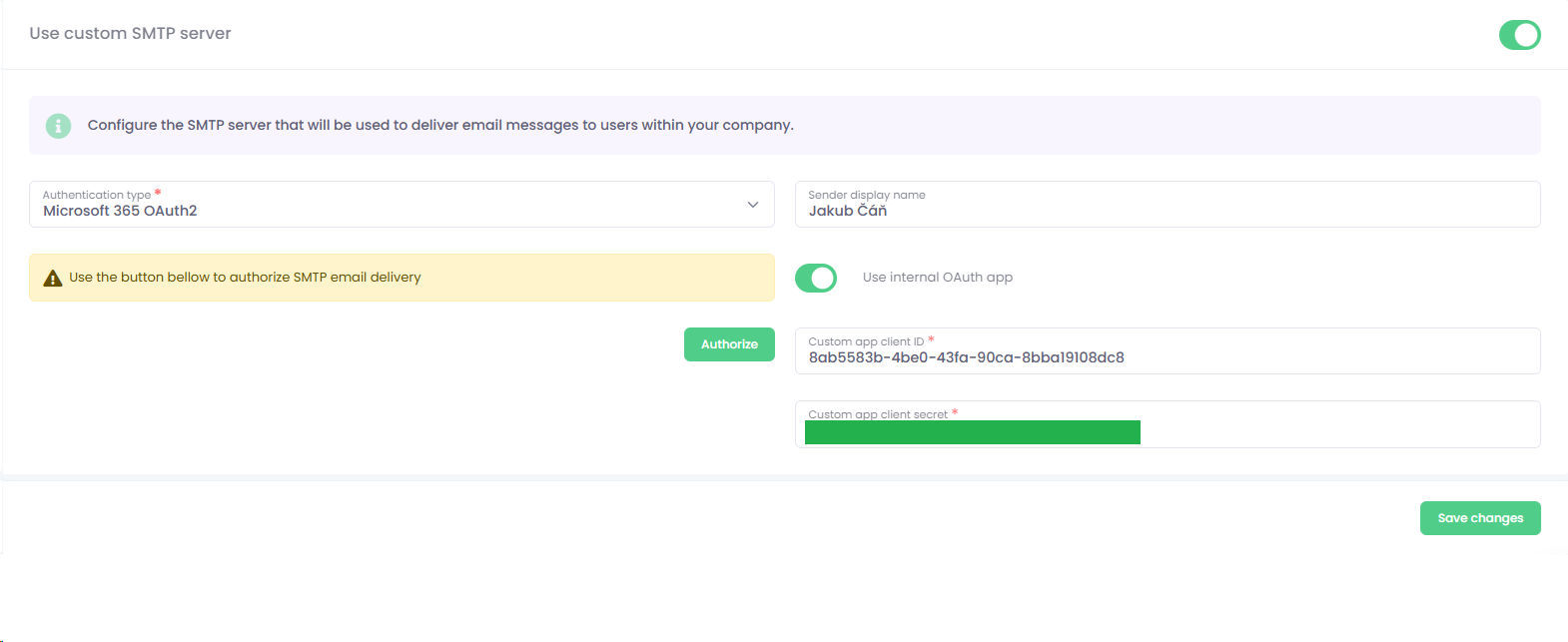
Custom application configuration
1. Login to the Azure Management Portal - https://portal.azure.com/#
2. Go to the Azure Active Directory section > App Registrations and click on New registration.
3. Enter the application name, select Multitenant account type and Redirect URI: https://beta.optimidoc.cloud/CompanySmtpAuth
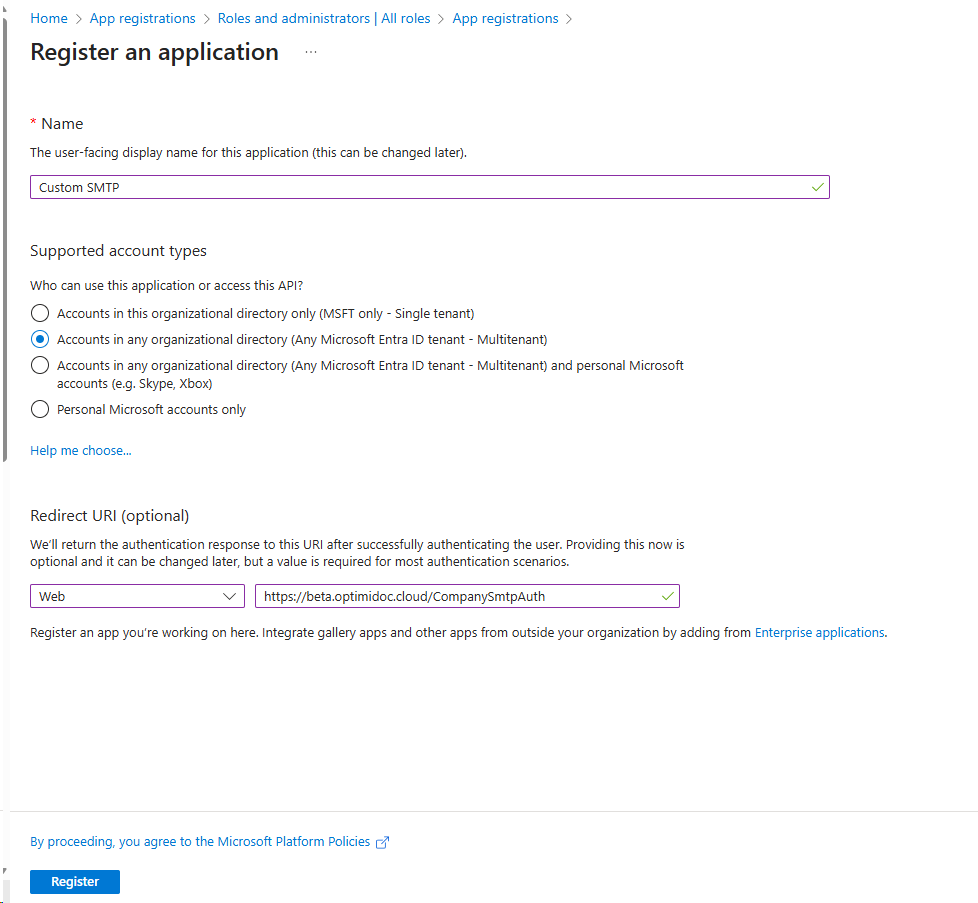
4. After creating the application go to certificates and secrets and create client secret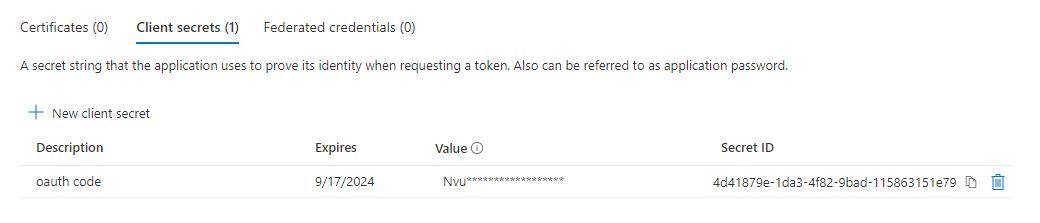
5. Copy secret value and application Client ID and paste them into according field in SMTP configuration.
6. By clicking on the Authorize, you will authorize the SMTP server configuration.