OptimiDoc Cloud lets you create specific configurations of IPP (Internet Printing Protocol) attributes and store them as reusable templates. These templates can then be assigned in the Virtual Spooler configuration, so that print jobs are processed with a consistent, predefined set of attributes.
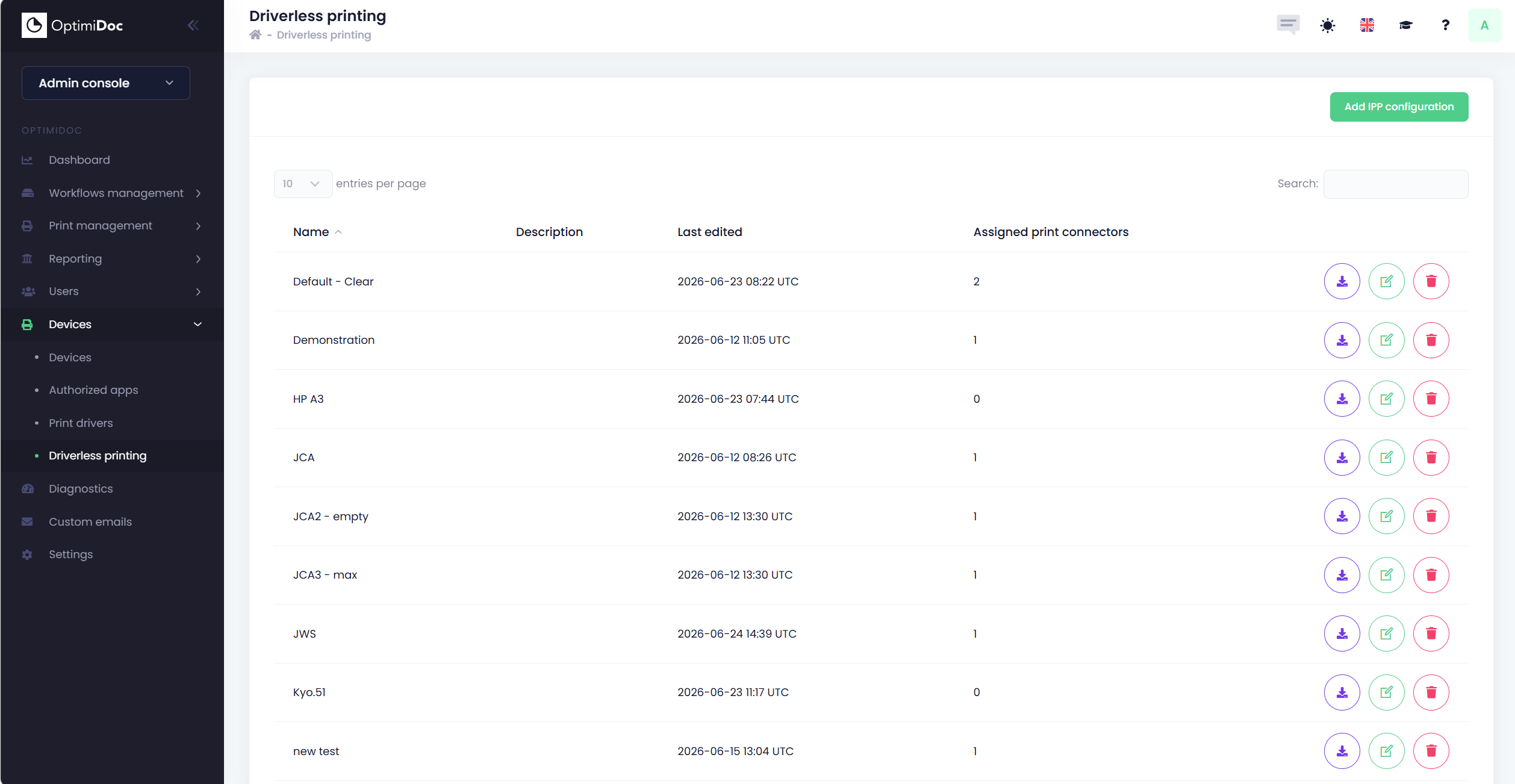
The Driverless printing section lists all available templates and provides a single place to create, edit, and manage them.
How to create a new IPP driverless configuration
-
Open the OptimiDoc Cloud Administration Portal and go to Devices > Driverless printing.
-
Click Add IPP configuration.
-
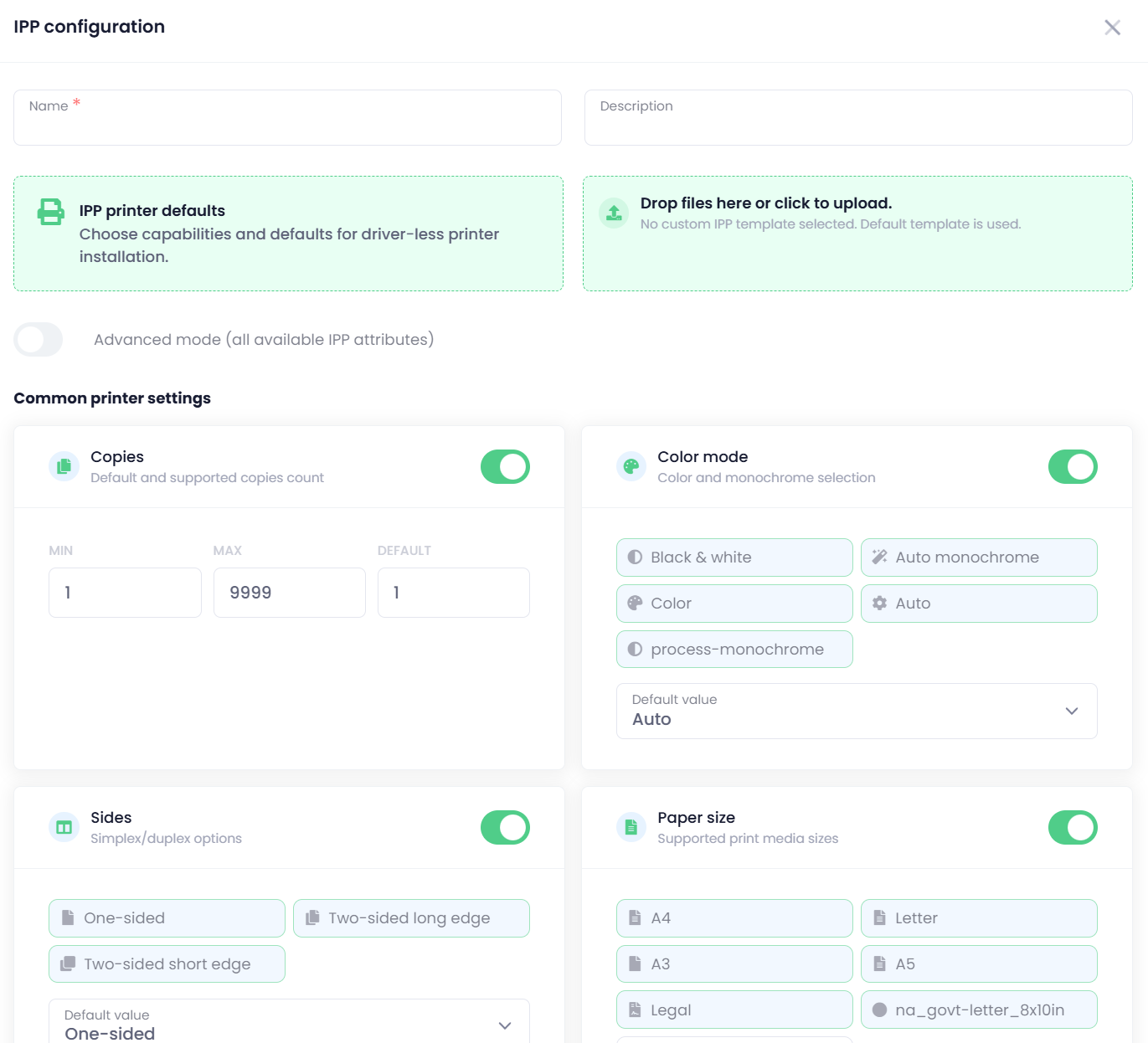
A new IPP configuration appears.
-
Switch between Simple and Advanced mode as needed. You can also upload IPP settings extracted from a real device — see How to extract device-specific IPP configuration for details.
-
Enable or disable individual IPP attributes, and for each one set the allowed values and the default option.
-
Give the configuration a descriptive name so it can be easily identified when assigning it later.
-
Save the configuration. It now appears in the list of available templates.
Assigning a template to a Virtual Spooler
-
Go to the Virtual Spooler configuration.
-
Select the IPP driverless template you created from the list of available templates.
-
Save the Virtual Spooler configuration to apply the template.
Managing existing configurations
From the Driverless printing section, you can review, edit, and remove existing IPP configurations. Each template lists its enabled attributes together with their allowed values and defaults.
Also, you can download the IPP configuration and upload it to another tenant.