The OCN is a new Virtual Spooler within OptimiDoc Cloud location that enables users to submit there print jobs to an OptimiDoc Cloud where the documents can be kept ready for printing. The OCN is aimed at providing local job spooling for all MFP Brands, including Kyocera, EPSON, HP, Lexmark and more. Rather than relying on the device embedded terminals, the OCN Virtual Spooler uses a dedicated location on it’s host machine to store and print all documents queued in the tenat. Metadata is sent back and forward to the user’s OptimiDoc Tenant for job accounting, reporting and much more. The OCN Virtual Spooler supports the use of both traditional print drivers and driverless printing.
Pre-Requisites
Before users can successfully utilize the OCN as a virtual spooler, the following requirements must be met
-
Cloud Client - Your must be running OptimiDoc Cloud Client v26.09 (or higher)
-
OCN Configuration - The OCN must be enabled and configured under Devices > OptimiDoc Cloud Nodes > Edit with the IP address used in your local network.
-
Print Connector - A Print connector using your chosen Cloud Node needs to be defined under Print Management > Print Connectors.
Note: You will only be able to release jobs spooled in the OCN on MFD’s that are in the same subnet. (Assigned the same site).
Sending a Job
To Print using OCN’s Virtual Spooler please follow the steps lined out below
-
Create a print connector within your OptimiDoc Cloud tenant under Print Management > Print connectors.
-
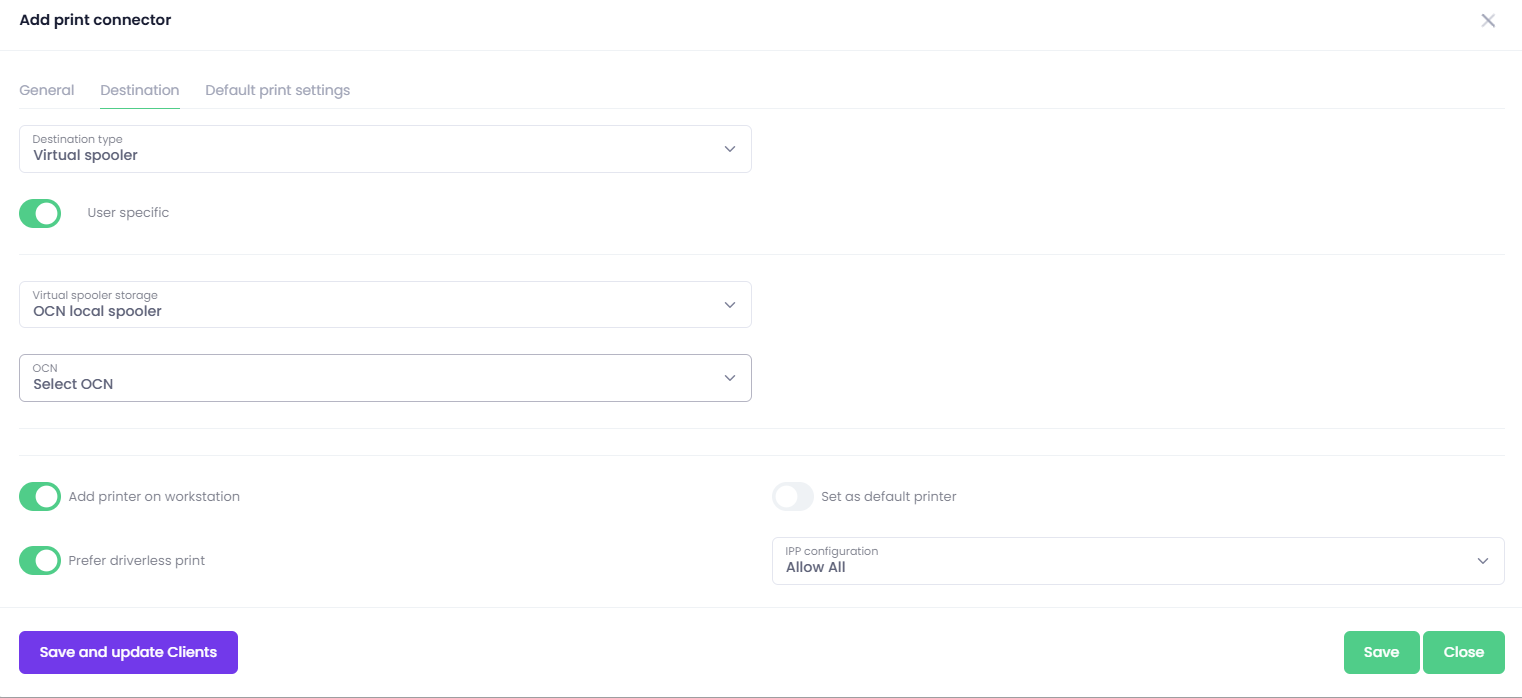
For the Destination Type, select Virtual Spooler and OCN local spooler as the Virtual Spooler storage.
-
Populate the OCN field with your OCN from the dropdown list, then proceed to configure either a print driver or driverless configuration. Once done, click “Save & Update Clients” then proceed by setting up the print connector with either a print driver or a driverless configuration.