The OptimiDoc Device Installer simplifies the implementation of OptimiDoc Cloud in the customer’s environment. Using the application, you can configure one or multiple devices with a single click.
Also prevents human error during the manual configuration.
Installation with OptimiDoc Device Installer
-
Open the OptimiDoc Partner Portal and log in.
-
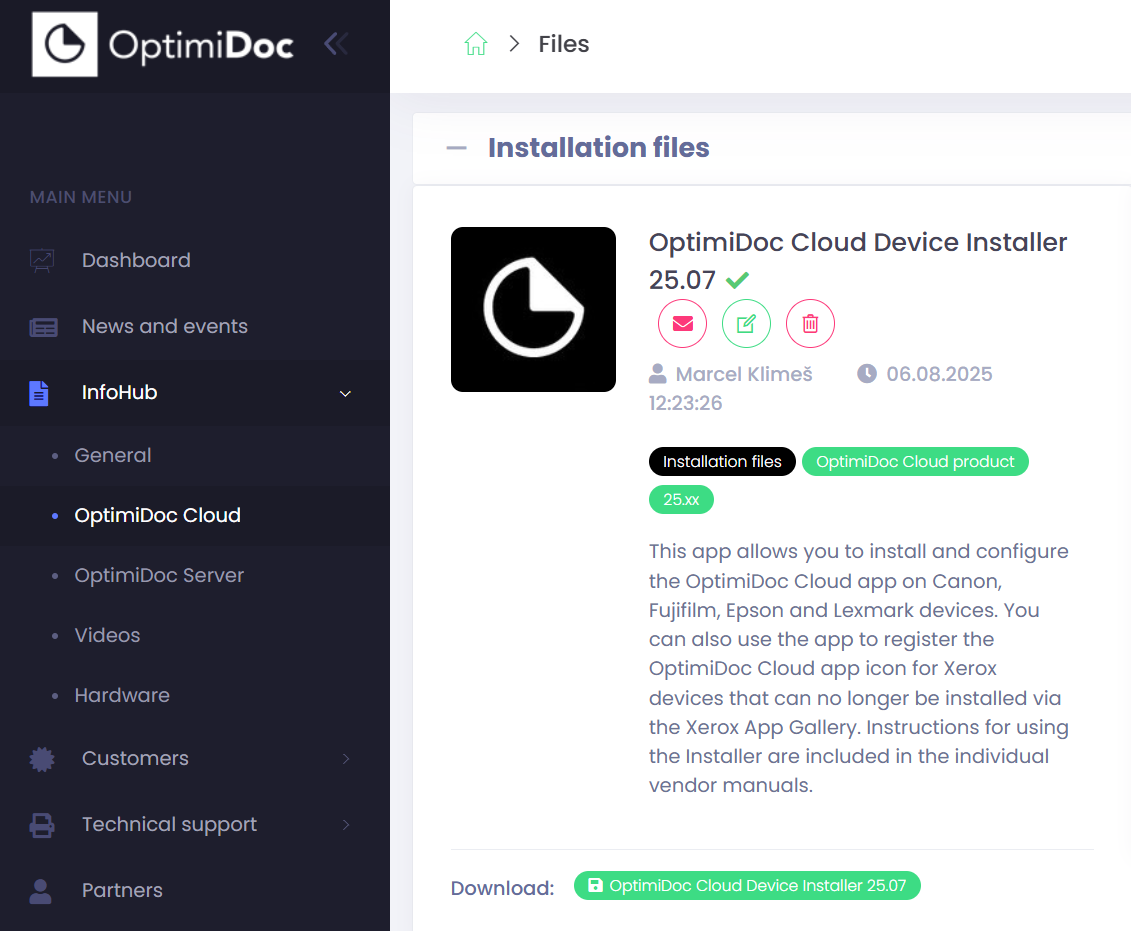
Go to section InfoHub > OptimiDoc Cloud and search for OptimiDoc Cloud Device Installer.
-
Click Download.
-
Run DeviceInstaller.msi.
-
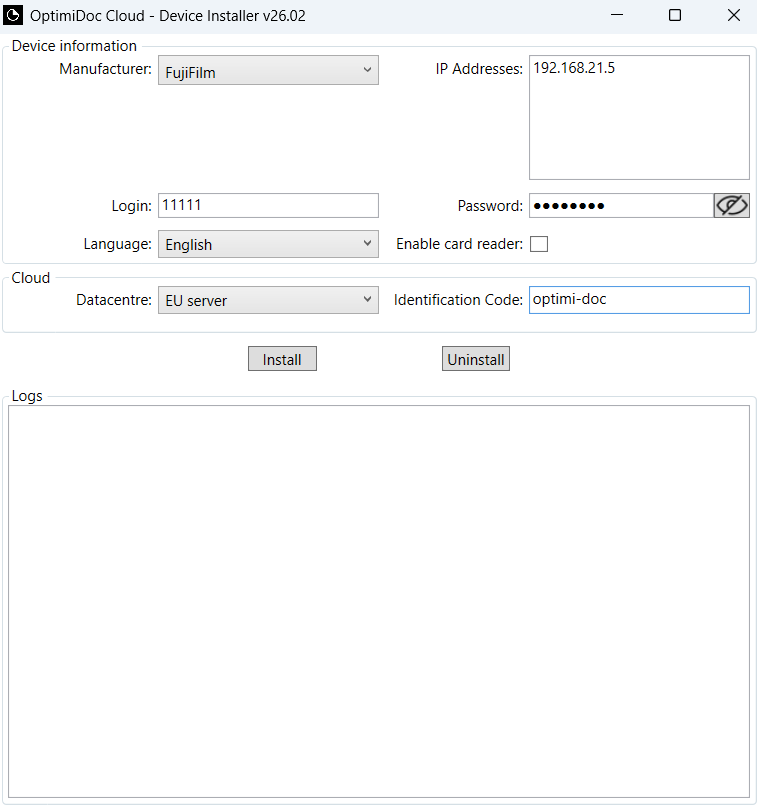
Configure the Installer as follows:
-
Device information:
-
Manufacturer – choose Fujifilm.
-
IP addresses: Enter the device’s IP address. The installer allows you to install multiple devices in a single step. To install several devices, enter multiple IP addresses, each on a separate line.
-
Login: Device administrator username.
-
Password: Device administrator password.
-
Language: Select the language from the list.
-
Enable card reader: Select this option only if you have a card reader connected. If you do not have a card reader connected during installation but wish to use one in the future, you must uninstall the software using the same configuration that was used during installation, then select the card reader option, connect it to the device, and reinstall the software.
-
-
b. Cloud:
i. Datacentre: Select the data centre from the list.
ii. Identification code: enter the tenant's unique identification code.
-
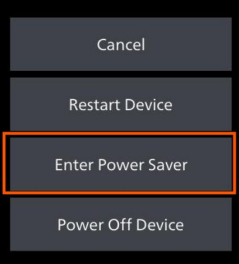
Before you send the configuration to the device, make sure the printer is in the sleep mode. Simply click on the power button on the terminal and select “Enter Power Saver” option.
-
To confirm the device status navigate to device web interface and check it under native menu.

-
Click Install.
The installation result is recorded in the installation log. Additional information can be found in the log.txt file which can be found in the following path: C:\Users\<user_name>\AppData\Local\OptimiDoc\Device Installer or by pressing F12 keyboard while you click to the Logs field in the Installer UI.
-
Enable the MFP: OptimiDoc Cloud application enablement.
-
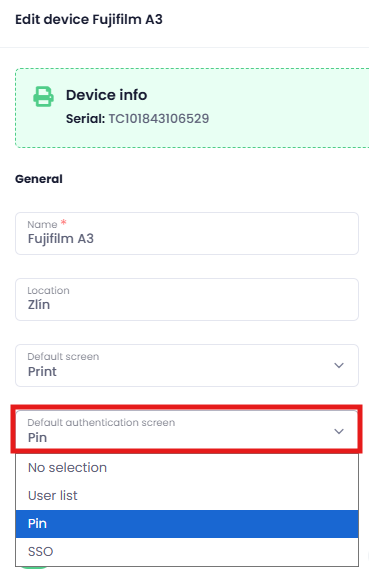
When enabling the device on the Cloud Portal, select the default login screen (PIN/card or User list).
-
Open the device web interface.
-
Log in to the device as an administrator.
-
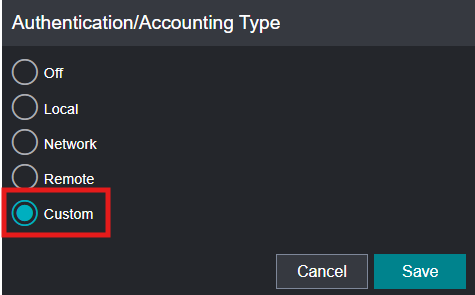
Navigate to Permissions > Authentication and Accounting > Authentication/Accounting Type > and select “Custom” option.
-
Click Save.