
OptimiDoc Cloud, thanks to the RestAPI destination and Advanced list, offers a deep integration with this platform. Users can scan a document directly to Zoho CRM or Zoho Invoice.
Detailed documentation about the API for each Zoho Application can be found here: Zoho REST APIs | Zoho Developer
In the following sections, we will go through:
-
Registering OptimiDoc Cloud in the Zoho API Console
Registration of OptimiDoc Cloud in API Clients is required to access specific APIs. -
Demo configuration for storing documents in Zoho CRM with Account selection on the device panel
-
Demo configuration for storing documents in Zoho Invoice with Invoice selection on the device panel
Registering OptimiDoc Cloud in the Zoho API Console
-
Open the Zoho API Console.
https://api-console.zoho.com -
Go to List of Zoho APIs.
-
Click Add Client.

-
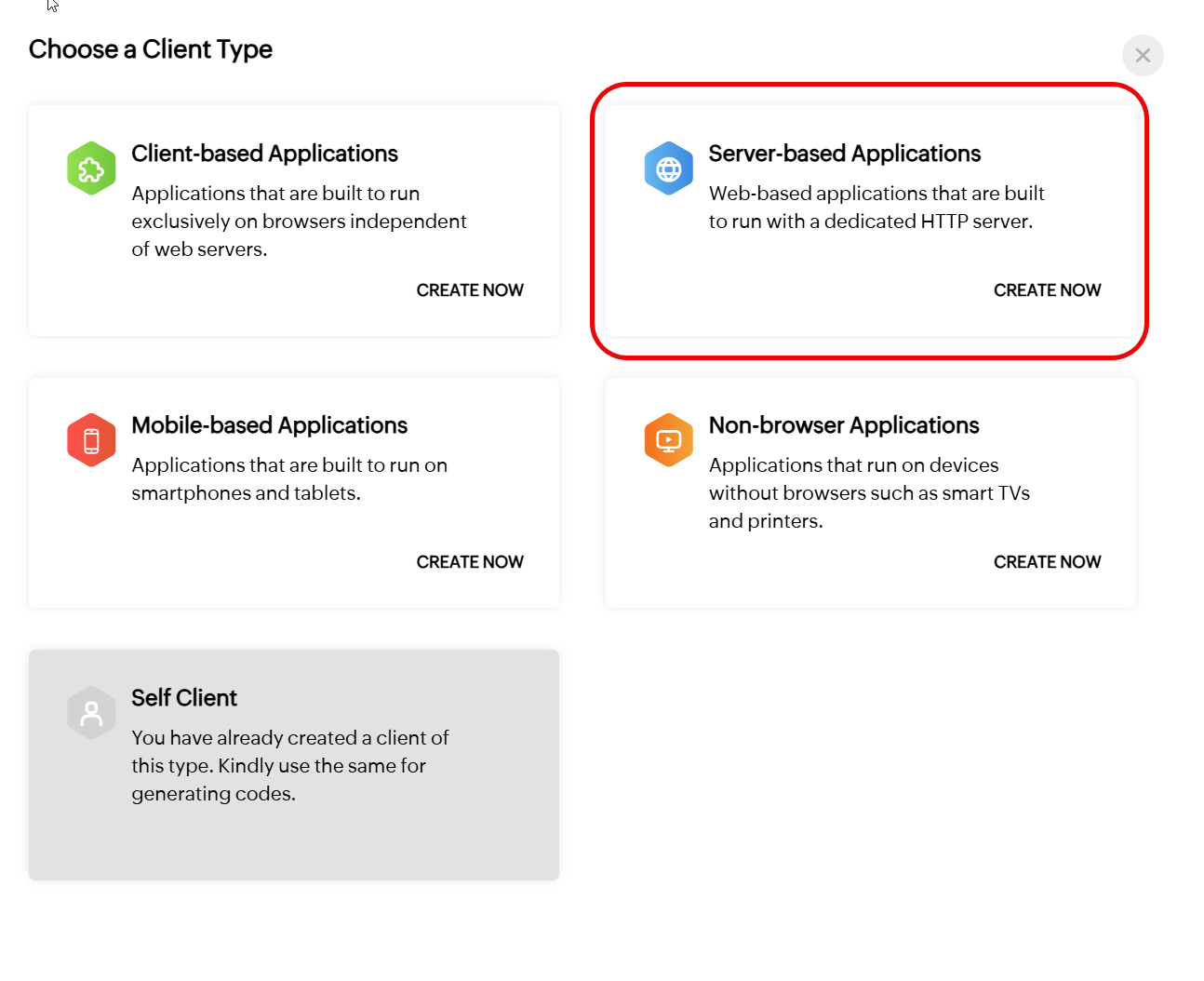
Select Server-based Application.
-
Client Details - Fill in the following information:
-
Client Name
Enter a descriptive name, for example OptimiDoc Cloud. -
Homepage URL
Enter the URL of your OptimiDoc Cloud datacentre. -
Authorised Redirect URIs
Add the following redirect URIs, replacingxxwith the correct datacentre subdomain:
- https://xx.optimidoc.cloud/AdvancedLists/OAuthCallback
- https://xx.optimidoc.cloud/Destinations/AuthorizeApi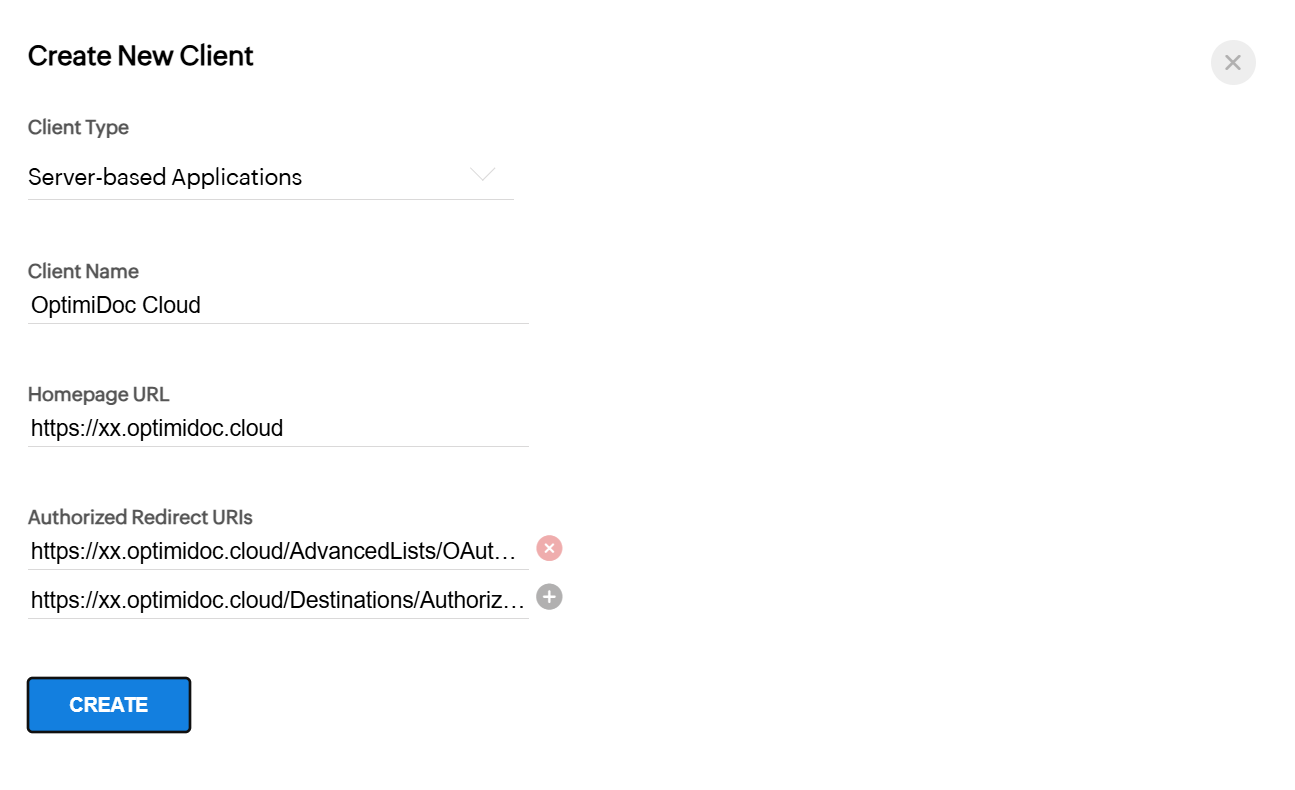
-
-
-
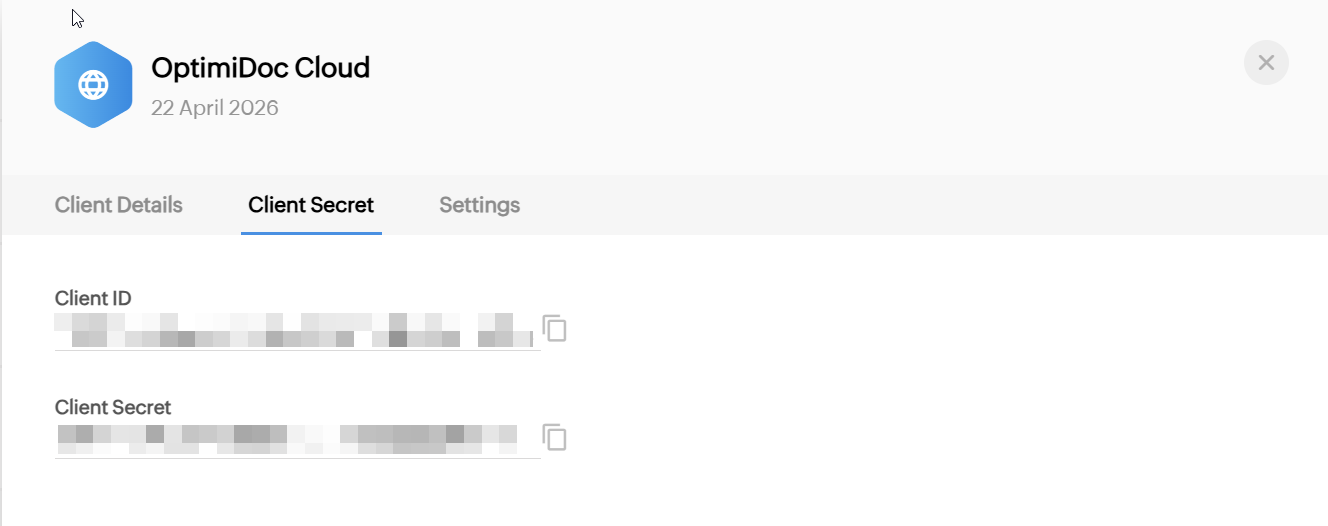
Save the Client ID and Client Secret, as they are required for configuration in OptimiDoc Cloud.
-
Store the domain value:
