
OptimiDoc as the default application after login
-
Log in to the device web interface as an administrator.
-
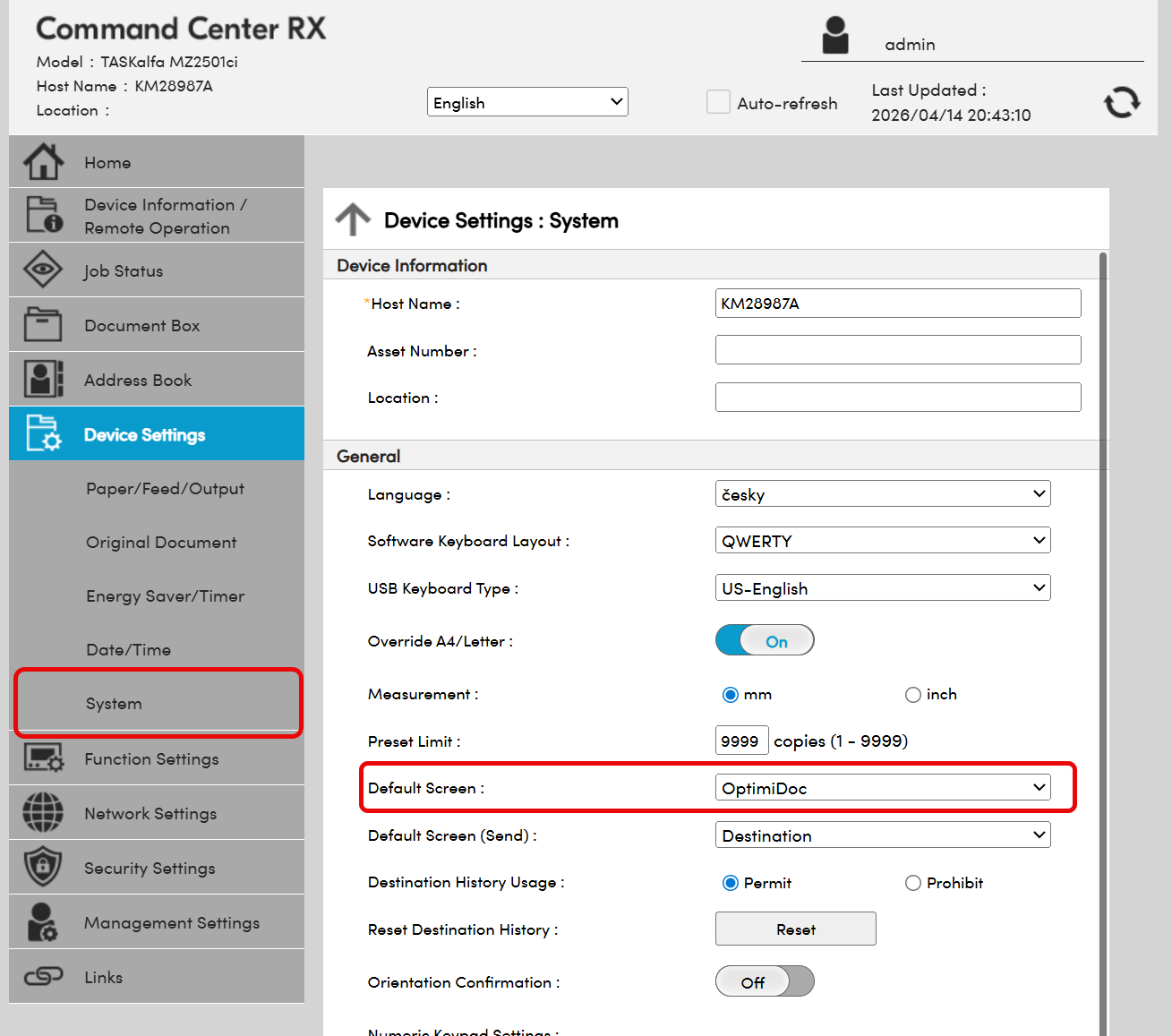
Navigate to Device Settings > System.
-
Set the Default Screen option to OptimiDoc.
Enable direct prints
-
Log in to the device web interface as an administrator.
-
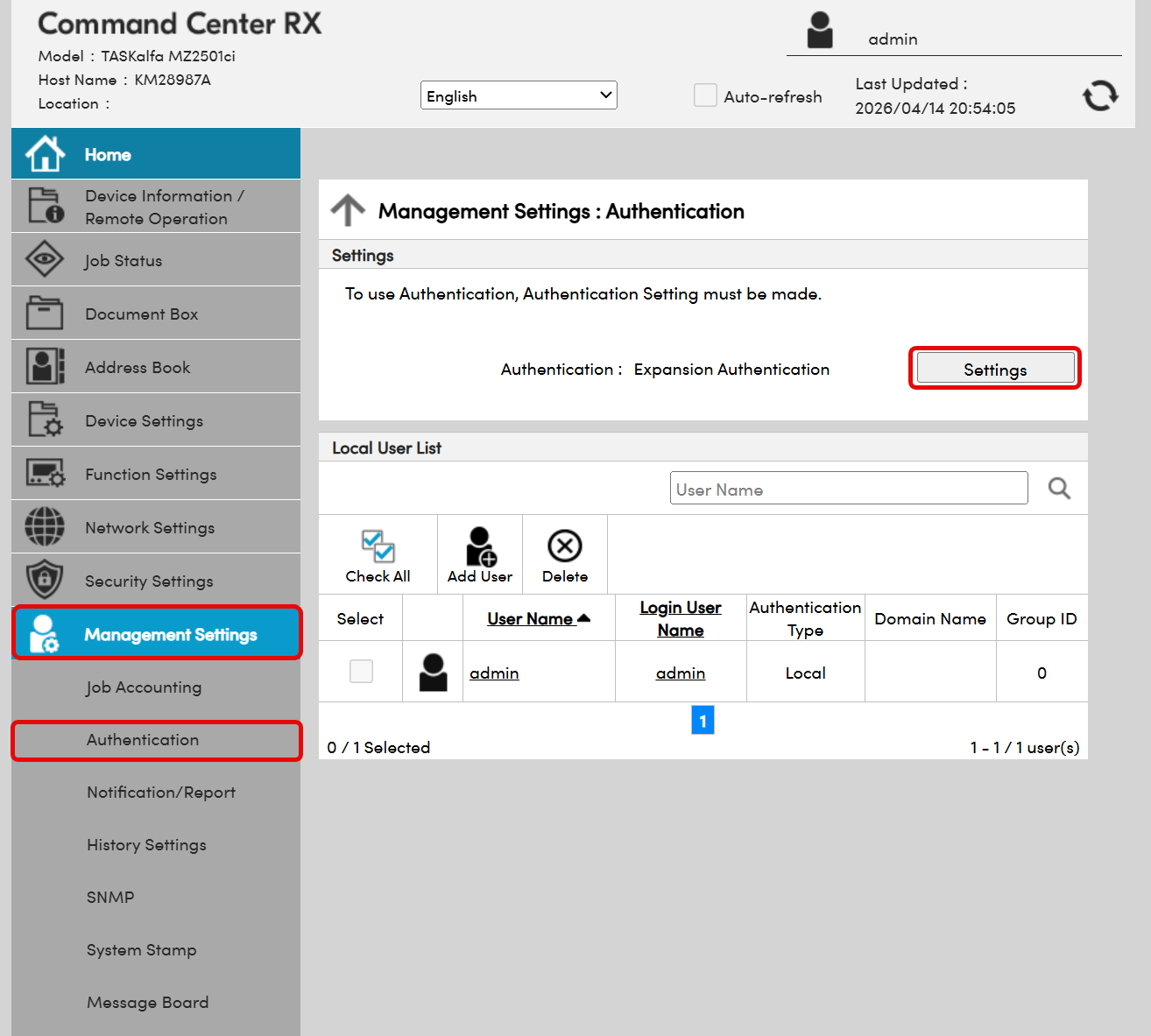
Navigate to Management Settings > Authentication.
-
Click Settings.
-
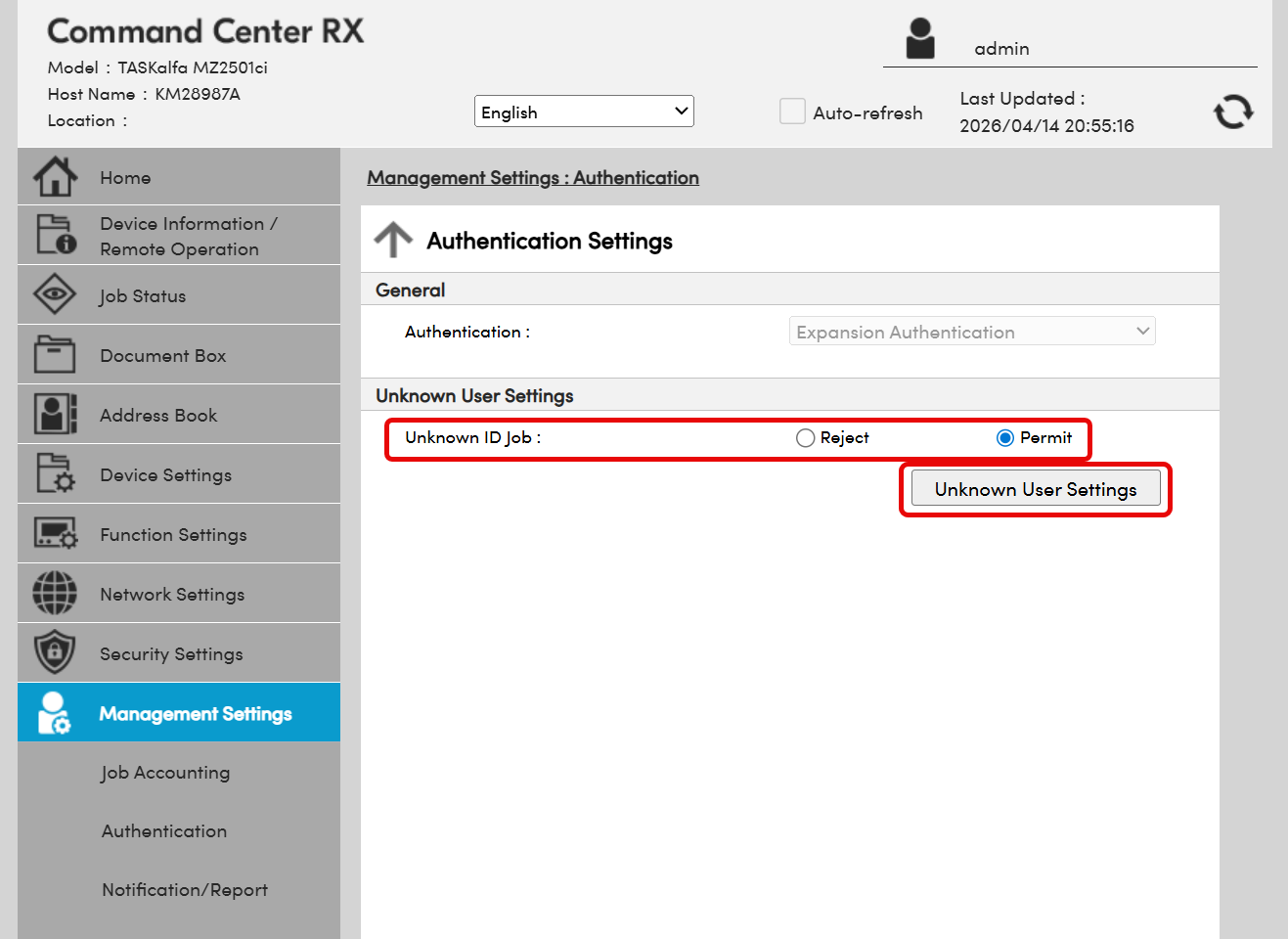
Select Unknown ID job to Permit.
-
Click Unknown User Settings.
-
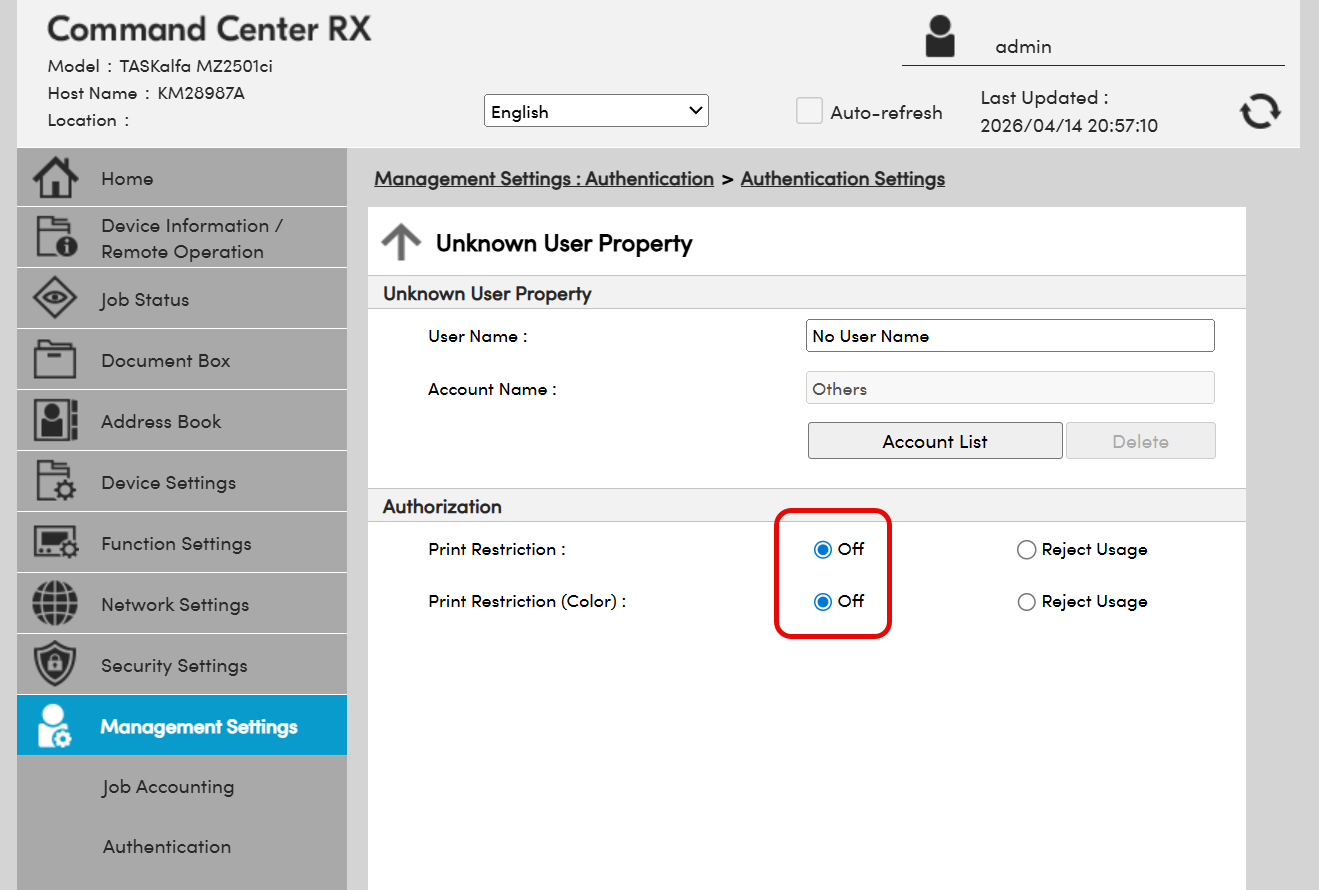
Turn off the print restrictions:
-
Click Submit.