
Storing document metadata in DocuWare requires two configuration steps in the REST API destination of the document workflow. First, the Delivery request must be configured to capture the document ID returned by DocuWare after upload. Then, a second request is added to send the metadata fields to DocuWare using that captured ID.
1. Add a Response Parameter to the Delivery Request
The DocuWare upload response contains the ID of the newly created document. This ID must be captured so it can be referenced by the metadata request that follows.
-
Open the OptimiDoc Cloud Admin Portal and navigate to Document Workflows.
-
Open the relevant document workflow and switch to the Destinations tab. In the Requests area, select the Delivery tab.
-
In the Response parameters table, add a new row with the following values:
-
Key —
docid -
Value —
Fields[0].Item
-
-
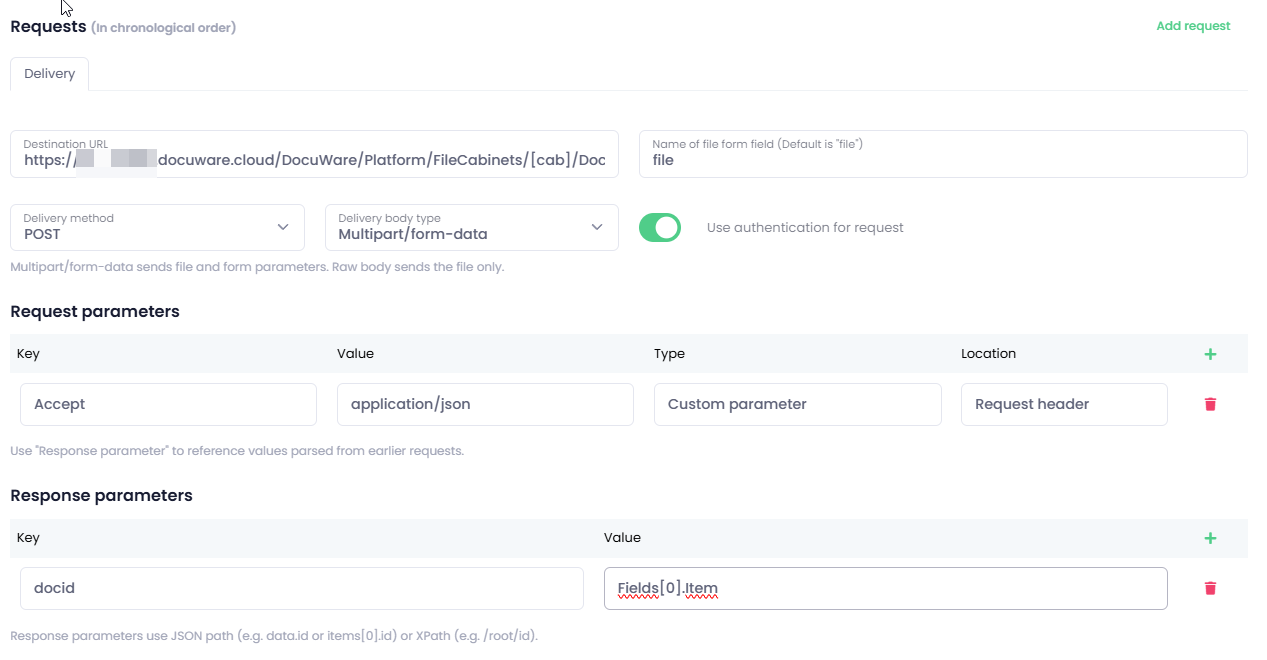
The Fields[0].Item selector extracts the document ID from the JSON response returned by the DocuWare upload API. Once parsed, the value is stored as docid and is available to all subsequent requests in the sequence.
2. Add a Request to Store Document Metadata
-
In the Requests area, click Add request to create a new request tab.
-
Drag the new tab to position it after the Delivery tab.
-
Configure the request as follows:
Request URLhttps://[customer_subdomain].DocuWare.cloud/DocuWare/Platform/FileCabinets/[cab]/Documents/[docid]/Fields- [customer_subdomain] — Use the correct DocuWare domain for your company account. - [cab] — Dynamically populated with the Cabinet ID selected in the workflow. - [docid] — Populated with the document ID captured in Step 1.-
Request method —
PUT -
Request body type —
JSON -
JSON body source —
JSON editor -
In the JSON body template, enter the metadata fields to be stored. The structure must follow the DocuWare field format. Example:
json
   {
     "Field": [
       {
         "FieldName": "DOCUMENT_TYPE",
         "Item": "[document_type]"
       },
       {
         "FieldName": "COMPANY",
         "Item": "[company]"
       }
     ]
   }
Replace
DOCUMENT_TYPEandCOMPANYwith the actual DocuWare field names defined in your cabinet. Use[parameter_key]placeholders to reference values from the document workflow.-
In the Request parameters table, add the following headers:
-
First
-
Key —
Accept -
Value —
application/json -
Type —
Custom parameter -
Location —
Request header
-
-
Second
-
Key —
Content-Type -
Value —
application/json -
Type —
Custom parameter -
Location —
Request header
-
-
-
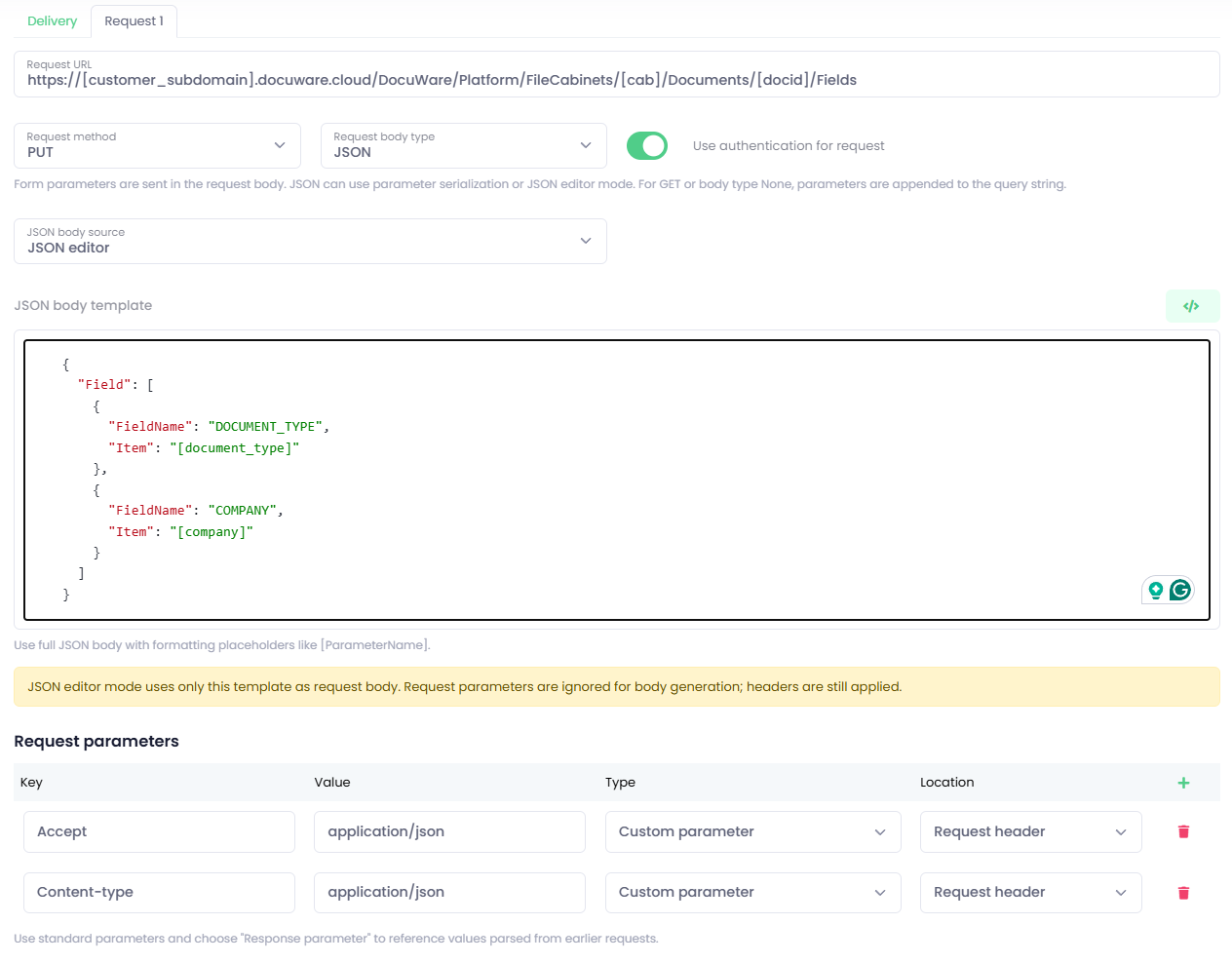
Save the Workflow.
Note: The DocuWare API specification for updating document fields is available in the REST API | DocuWare SDK Documentation.