
Use FTP/FTPS to pull documents directly into OptimiDoc and print them. To configure an OptimiDoc Cloud Print connector to use FTP/FTPS, please see below.
FTP/FTPS destinations are non-user-specific only. User-specific mode is not supported for FTP/FTPS.
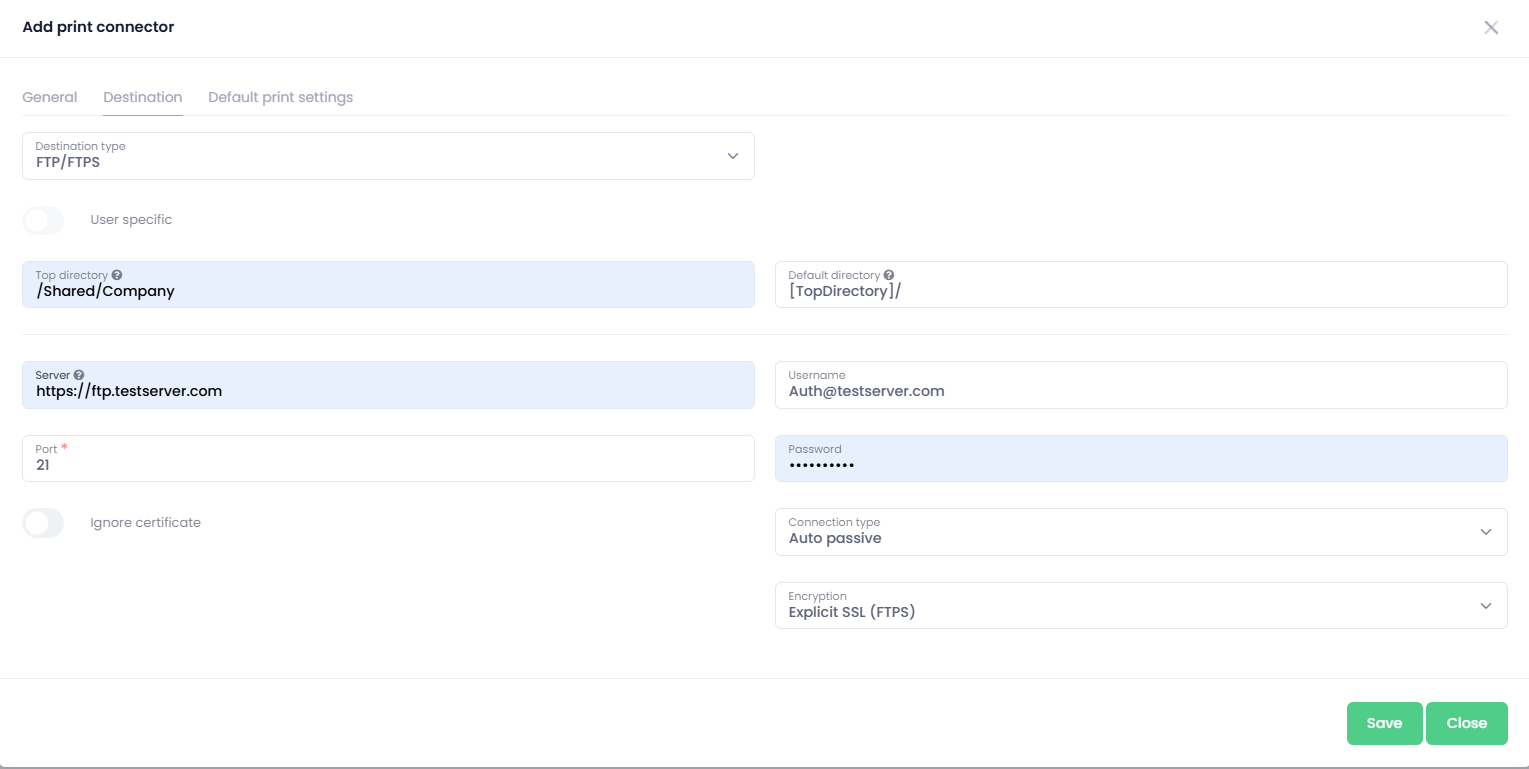
-
Select the FTP/FTPS print destination
-
Enter the configuration fields
-
Server - The IP address or DNS name of your FTP/FTPS server (e.g., ftp.example.com).
-
Port - The port number used by your server (commonly 21 for FTP/Explicit SSL, 990 for Implicit SSL; confirm with your admin).
-
Username / Password - Valid FTP account credentials with permission to create files in the target directory.
-
Connection type - Choose Active or Passive depending on your network and firewall configuration. Passive mode is often simpler through firewalls/NAT devices, but follow your organisation’s policy.
-
Encryption
-
None – standard FTP without encryption (not recommended on untrusted networks).
-
Explicit SSL – negotiates TLS/SSL over the standard FTP port.
-
Implicit SSL – requires TLS/SSL from the beginning of the connection (often port 990).
-
Ignore certificate (FTPS only)
Set to Yes to skip certificate validity checks (e.g., for self‑signed certs). Use only if aligned with your security standards.
-
-
Define the User Credentials that you will use to authenticate the FTP/FTPS server with
-