
Xerox - OptimiDoc Cloud EIP application configuration

This section shows how to configure the OptimiDoc Cloud EIP application.

  1. Open the OptimiDoc Cloud application from the device main menu.

    image-20260414-193431.png


  2. Click the Settings button in the upper-right corner of the application.

    image-20260414-193540.png


  3. A pop-up window will open. Enter the admin password (the default OptimiDoc admin password is admin) and click OK.

    image-20260414-193557.png


  4. Enter the configuration:

    1. Server location - select the requested date centre. List of datacenters is here: Geolocations of Datacentres

    2. Interface language - select the application language. List of supported languages is here: https://optimidoc.atlassian.net/wiki/x/swAQ

    3. Authentication method - the method by which the user authenticates to the print&scan application.

      1. PIN - users enter their personal PIN to access their print and scan interface.

      2. User list - users select their account from a list of available user profiles.

      3. Single sign on - Select the Single Sign‑On option when you want the device to obtain user information from a third‑party authentication application or from OptimiDoc Cloud Authentication. If the OptimiDoc authentication application is installed, Single Sign‑On is automatically chosen by default.
        When the application starts, the OptimiDoc Cloud app receives the user login provided by the device. This login is then matched against the Single Sign‑On field stored in the OptimiDoc Cloud user database.

d. Identification code - unique tenant’s code available at OptimiDoc Cloud Administration Portal. ID code can be found on the OptimiDoc Cloud portal. Once logged in, navigate to the Admin console > Dashboard > Identification code widget and click " Show value.

e. Administrator password - password to enter the OptimiDoc app settings.

f. OptimiDoc Cloud Node - obsolete functionality for printing from the local spooler of OCN.

image-20260414-193628.png
  1. Click SAVE.

  2. Enable the MFP: OptimiDoc Cloud application enablement.

Setting the OptimiDoc Cloud EIP Application as the Default After Device Authentication

Log in to the device web interface as an administrator, then navigate to Properties > General Setup > Entry Screen Defaults and select OptimiDocCloud as both the Default Walk‑Up Screen and the Default Screen When Originals Are Detected.
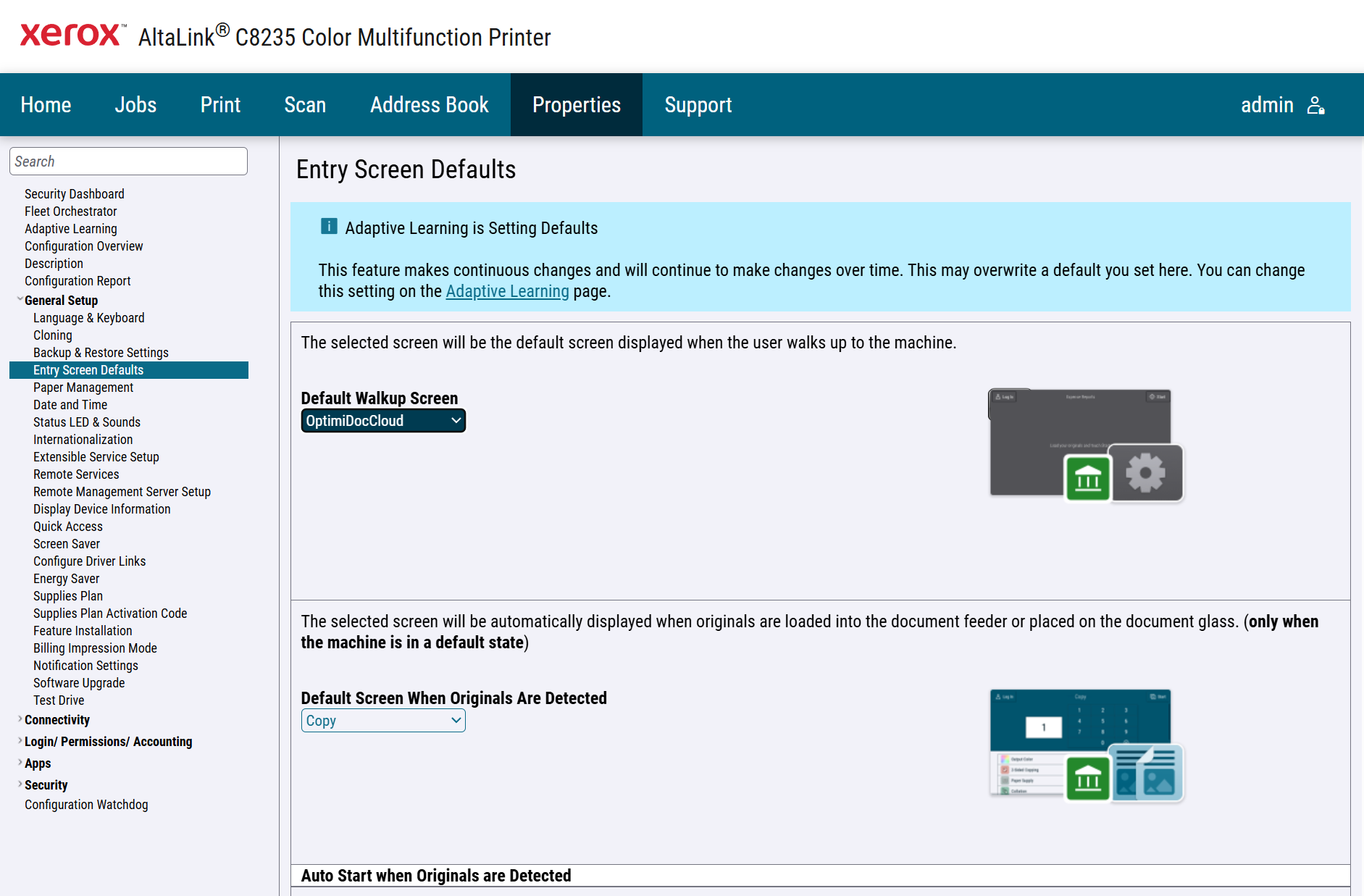
image-20260414-192611.png