
EIP (Xerox Extended Interface Platform) is used to provide printing and scanning functionality. The OptimiDoc Cloud Device Installer is used to register the application on selected devices.
Registration with OptimiDoc Cloud Device Installer
-
Open the OptimiDoc Partner Portal and log in.
-
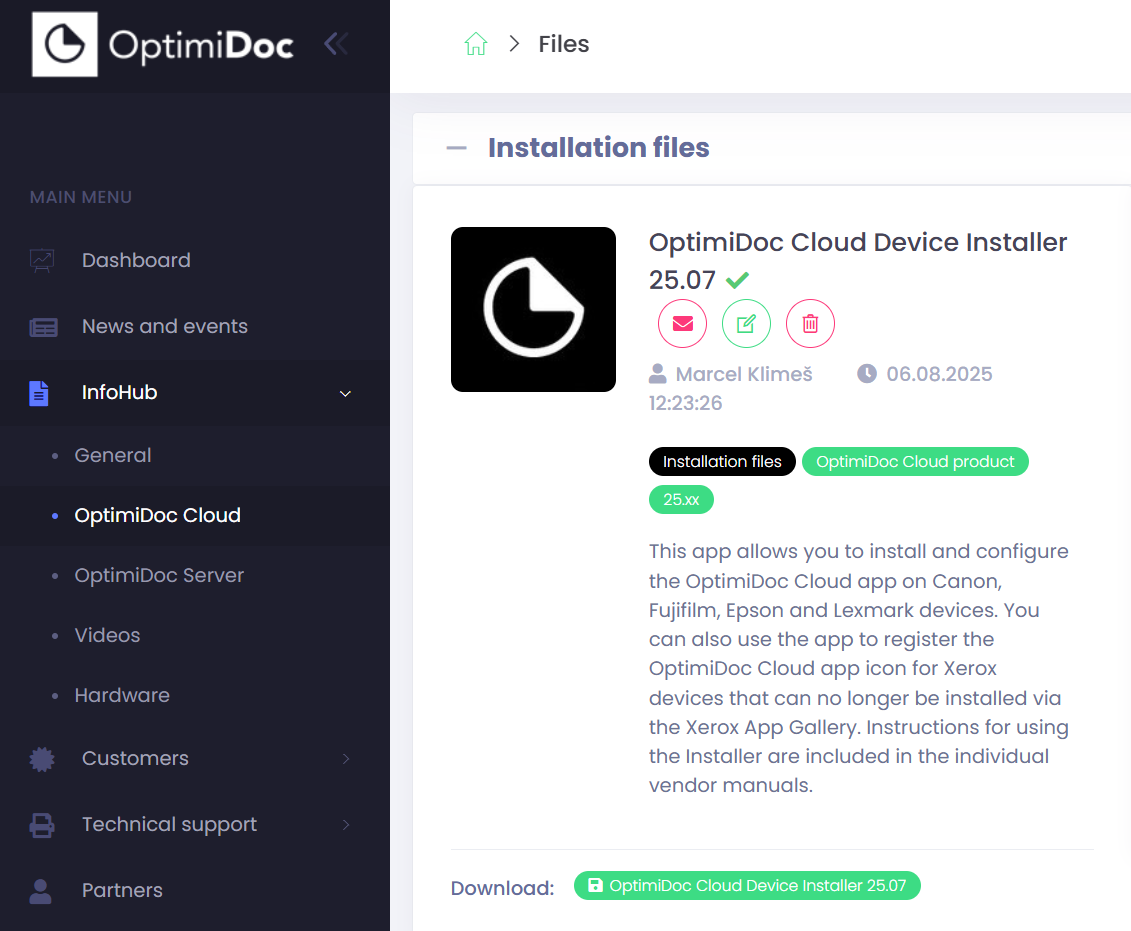
Go to section InfoHub > OptimiDoc Cloud and search for OptimiDoc Cloud Device Installer.
-
Click Download and extract the archive to a temporary location.
-
Run DeviceInstaller.exe.
-
Configure the Installer as follows:
-
Manufacturer – choose Xerox.
-
IP addresses: Enter the device’s IP address. The installer allows you to install multiple devices in a single step. To install several devices, enter multiple IP addresses, each on a separate line.
The devices need to have the same password. -
Login: Device administrator username.
-
Password: Device administrator password.
-
Language: select the application language. List of supported languages is here: https://optimidoc.atlassian.net/wiki/x/swAQ.
-
Xerox device Auth: install EIP authetication weblet providing pure Cloud authetication.
-
Datacentre: tenant datacentre.
-
Identification Code: tenant identification code.
-
-
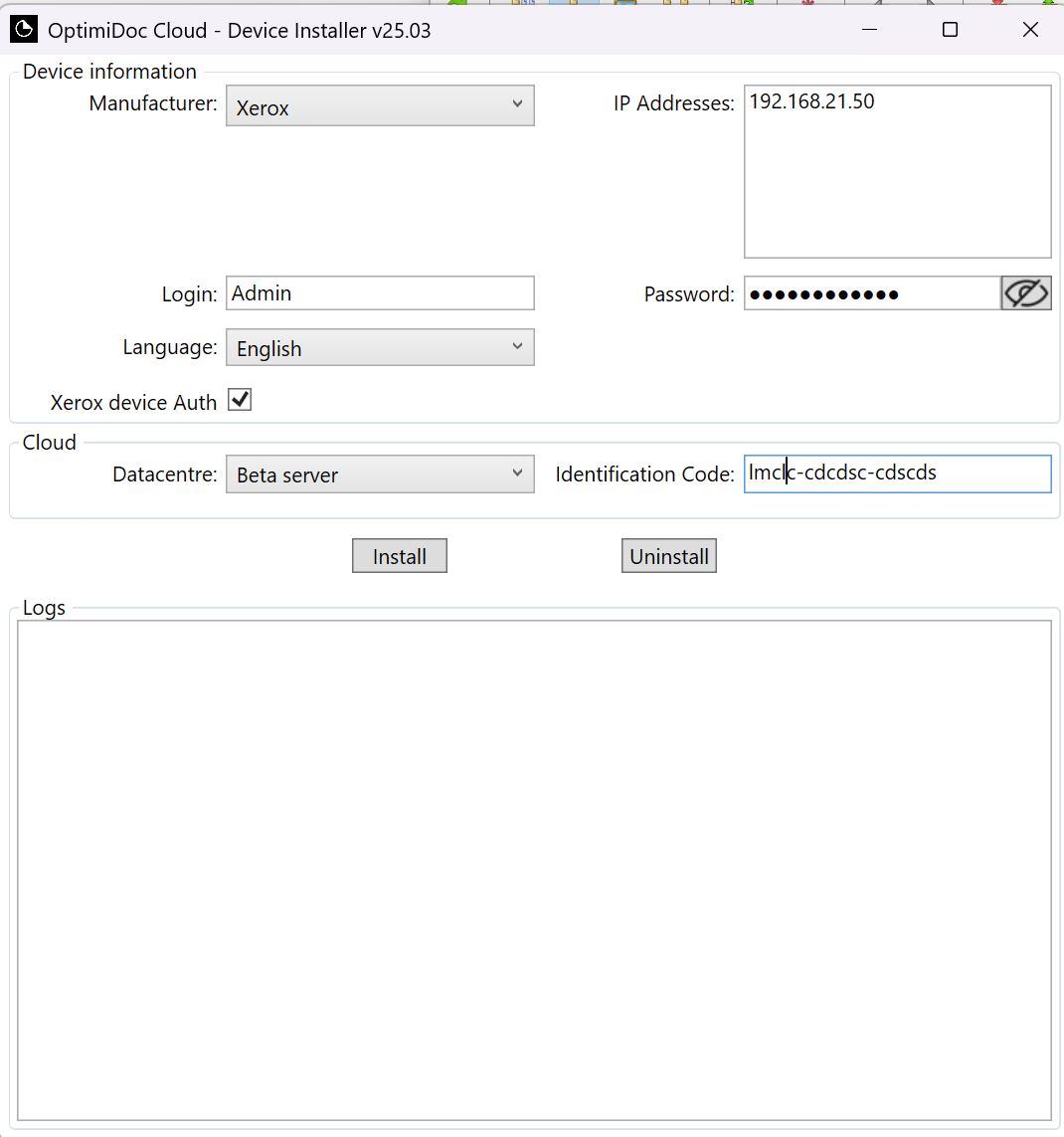
Click Install.
The installation result is recorded in the installation log. Additional information can be found in the log.txt file, which can be found in the following path: C:\Users\<user_name>\AppData\Local\OptimiDoc\Device Installer, or by pressing F12 keyboard while you click on the Logs field in the Installer UI.
-
After completing the installation, follow the required steps on each device to configure the application: Xerox - OptimiDoc Cloud EIP application configuration