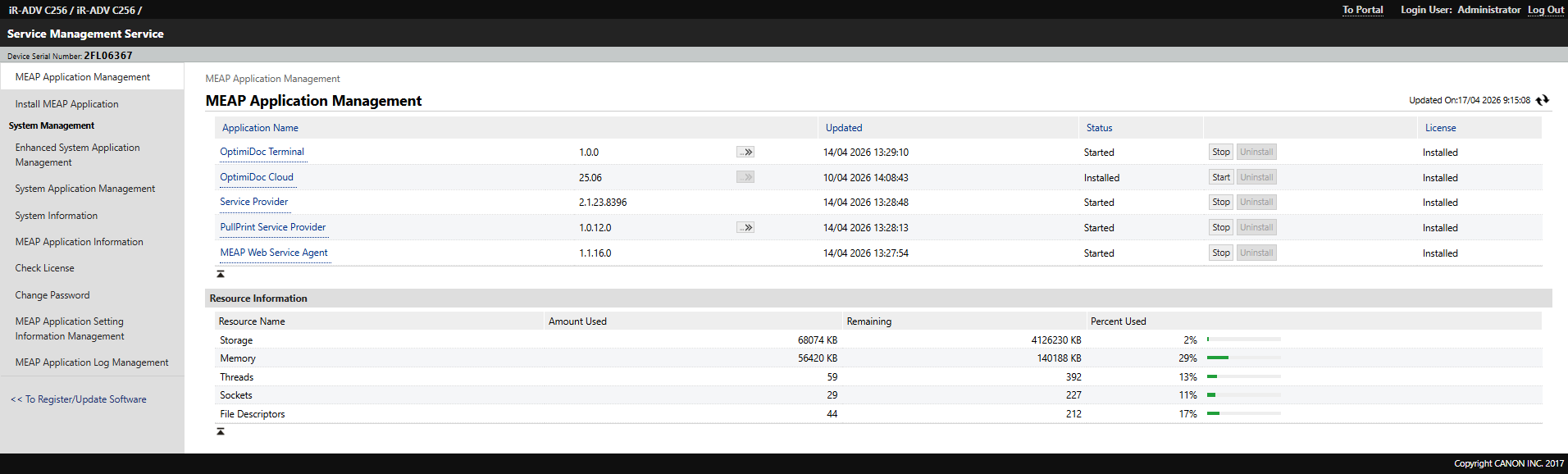
To ensure the OptimiDoc application functions properly, it is essential to follow the correct installation order. If you have not yet installed the OptimiDoc application, you must do so before proceeding to install the Authentication application. Instructions for installing the OptimiDoc application can be found here:Canon - ODC app Installation via CDS.
-
Open the device web interface.
-
Log in to the device as an Administrator.
-
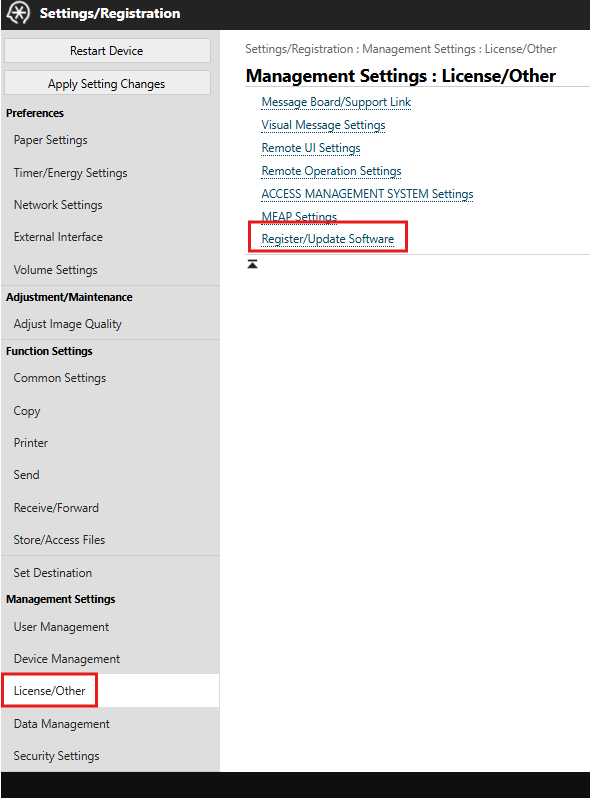
Navigate to Settings/Registration.

-
Continue to License/Other > Register/Update Software.
-
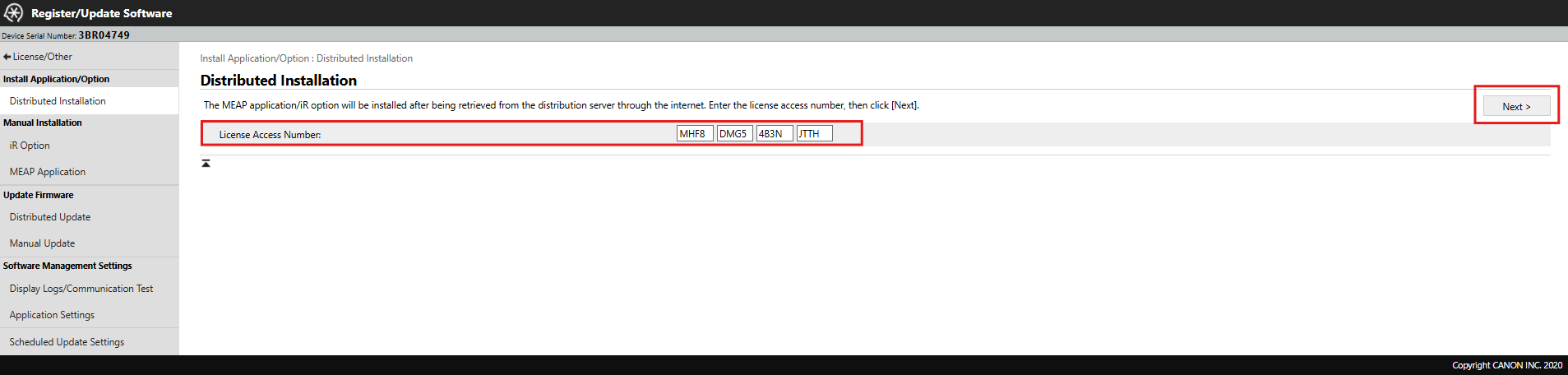
Enter License Access Number (LAN).
LAN code for Authentication application: H2YW-ZKMU-W78T-HQ9J
-
Click Next.
-
Select the latest version of OptimiDoc Authentication to be installed.
-
Click Start Installation button.

-
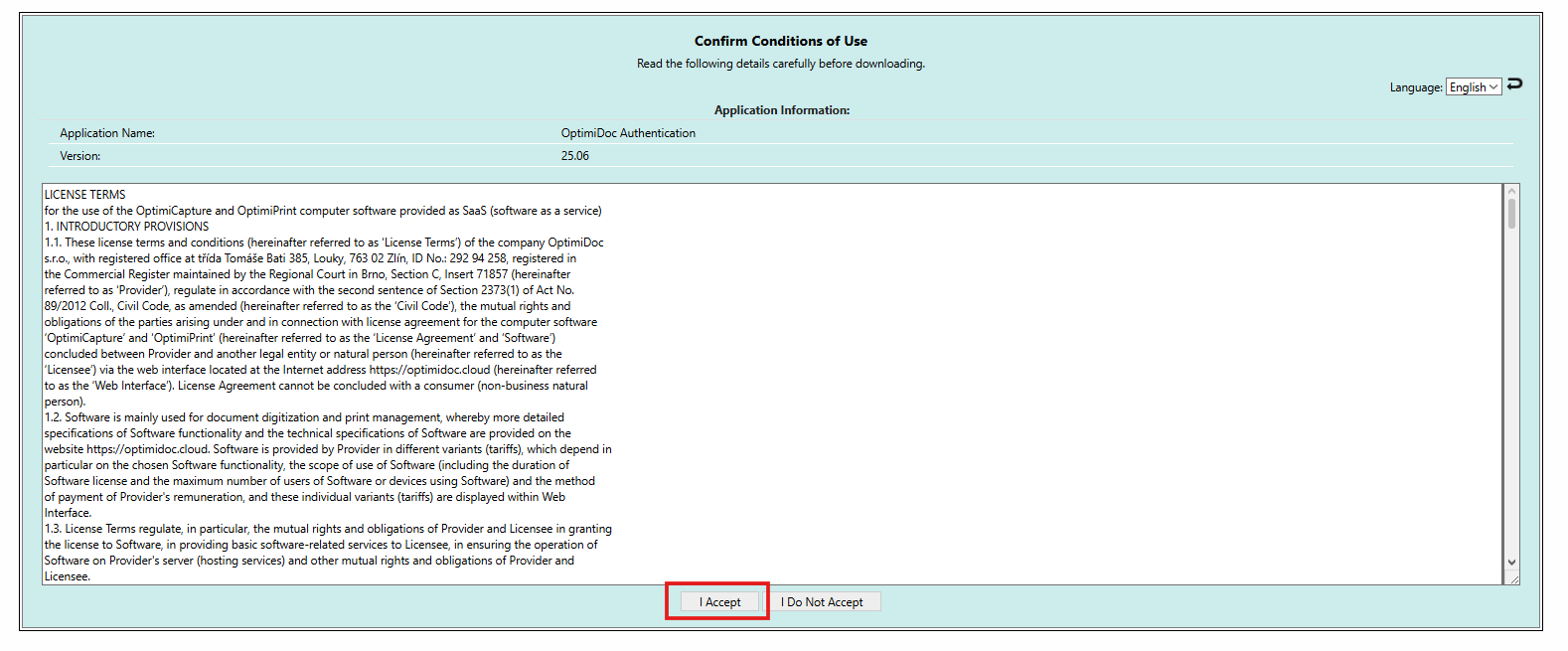
Accept EULA terms.
-
Click To Distributed Installation once the operation is completed.

-
Restart the device.
-
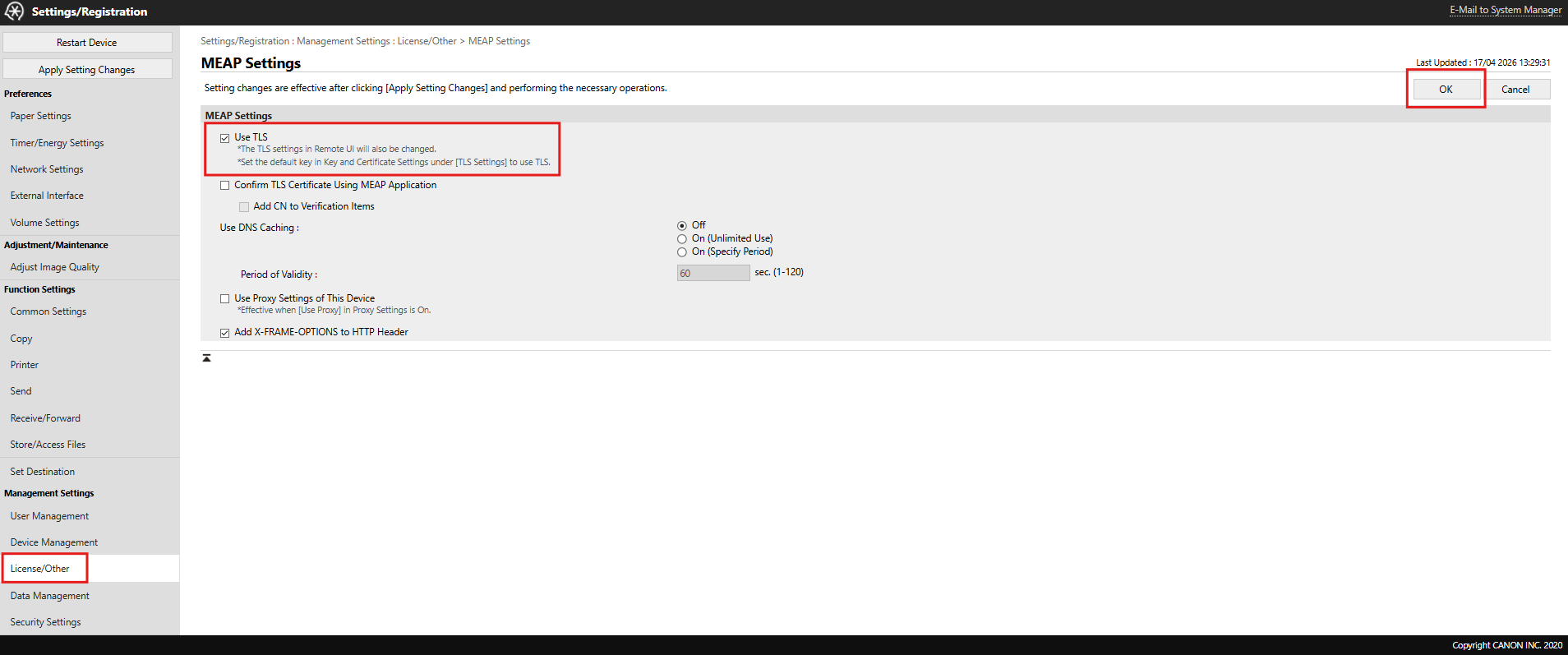
Once the device has restarted, navigate to Settings/Registration > License/Other > MEAP Settings > check the Use TLS option.
-
Click OK.
To view the list of installed applications, navigate to Settings/Registration > License/Other > Register/Update Software > MEAP Application > To Service Management Service > MEAP Application Management.