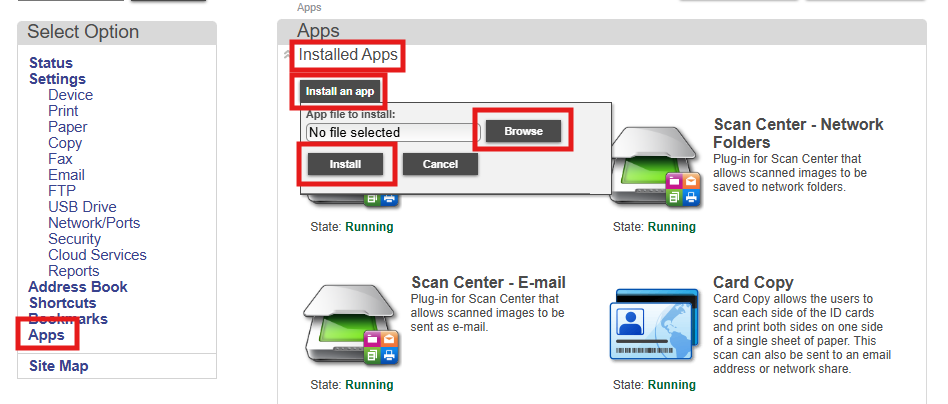
After completing the manual configuration settings on the device web interface Lexmark - Installation and Configuration, you can follow the steps below.
The OptimiDoc Device Installer simplifies the implementation of OptimiDoc Cloud in the customer’s environment. Using the application, you can configure one or multiple devices with a single click.
Also prevents human error during the manual configuration.
Installation with OptimiDoc Device Installer
-
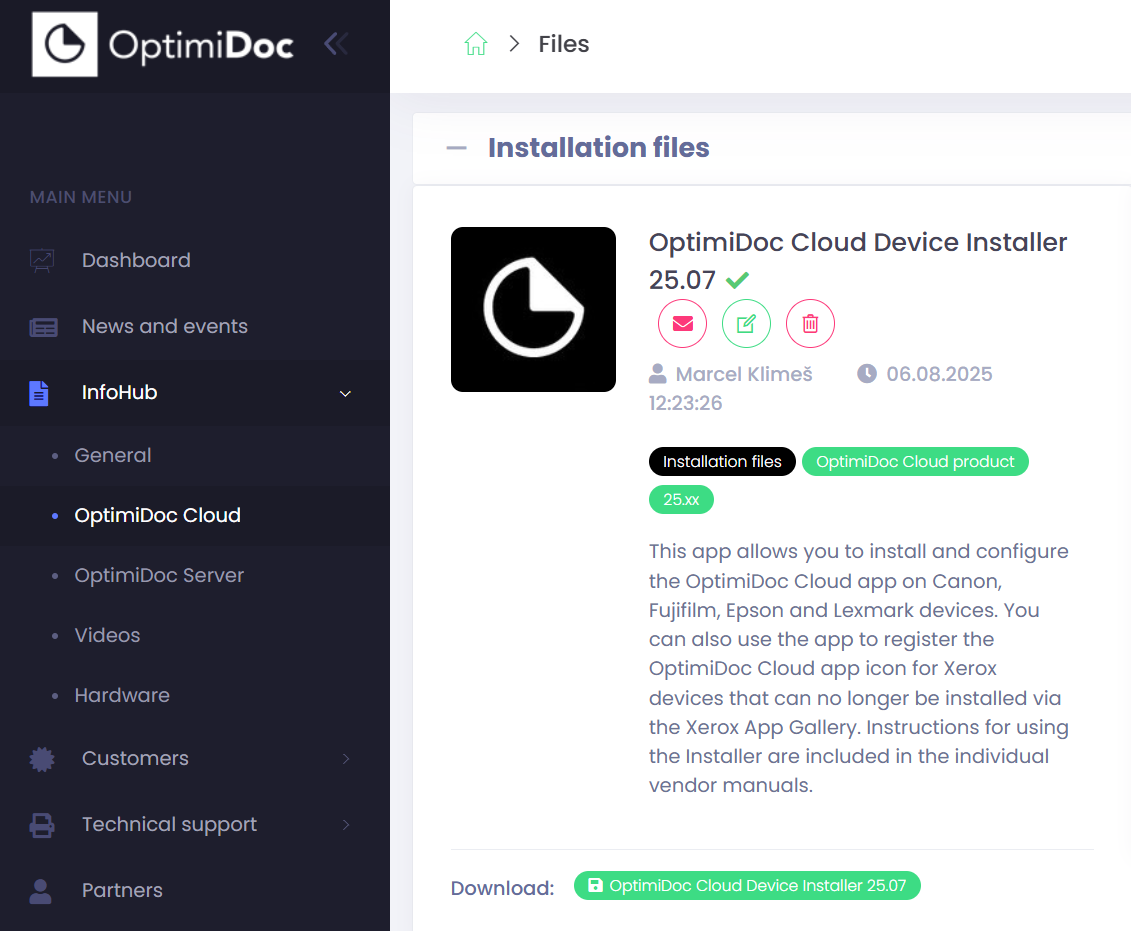
Open the OptimiDoc Partner Portal and log in.
-
Go to section InfoHub > OptimiDoc Cloud and search for OptimiDoc Cloud Device Installer.
-
Click Download.
-
Run DeviceInstaller.msi.
-
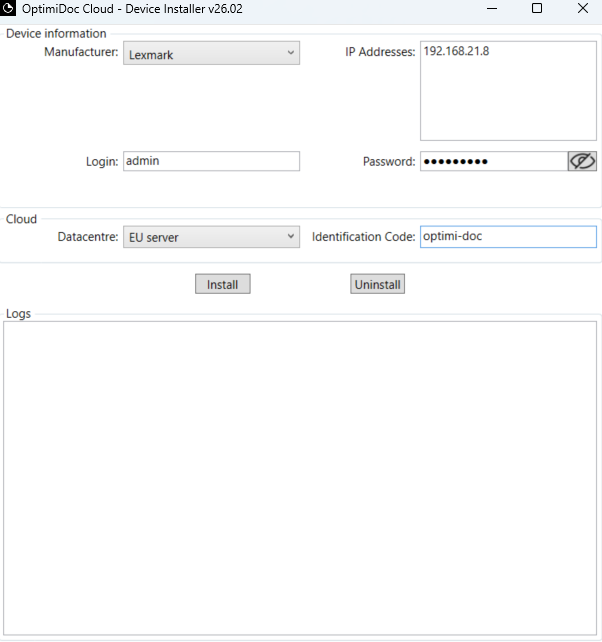
Configure the Installer as follows:
-
Device information:
-
Manufacturer – choose Lexmark.
-
IP addresses: Enter the device’s IP address. The installer allows you to install multiple devices in a single step. To install several devices, enter multiple IP addresses, each on a separate line.
-
Login: Device administrator username.
-
Password: Device administrator password.
-
-
b. Cloud:
i. Datacentre: Select the data centre from the list.
ii. Identification code: enter the tenant's unique identification code.
-
Click Install.
The installation result is recorded in the installation log. Additional information can be found in the log.txt file which can be found in the following path: C:\Users\<user_name>\AppData\Local\OptimiDoc\Device Installer or by pressing F12 keyboard while you click to the Logs field in the Installer UI.
-
Enable the MFP: OptimiDoc Cloud application enablement.
-
Once you've enabled the device on the Cloud portal, proceed with the post-installation configuration: Lexmark - Post-install configuration.
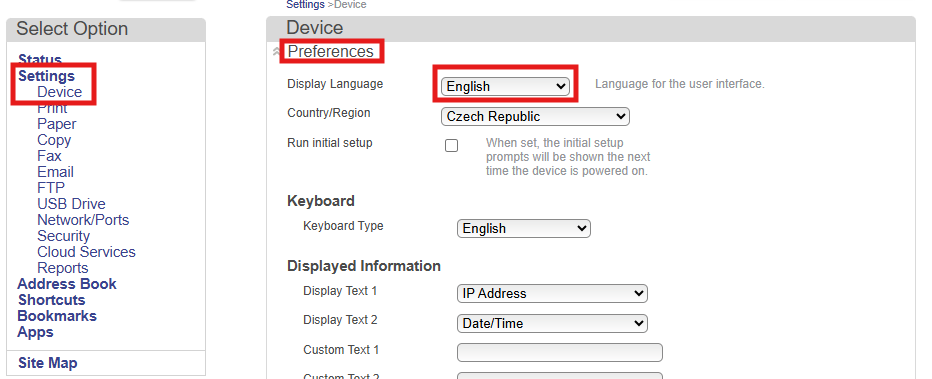
Language:
To change the language settings, log in to the printer's web interface as an administrator, go to Settings > Device > Preferences, and select appropriate language settings.
Card Authentication:
To log in using a card, you must download and install the Keyboard Reader Emulation Driver.
Next, log in to the printer's web interface as an administrator, go to Apps > Installed Apps, click Install an app, upload the file, and click Install.