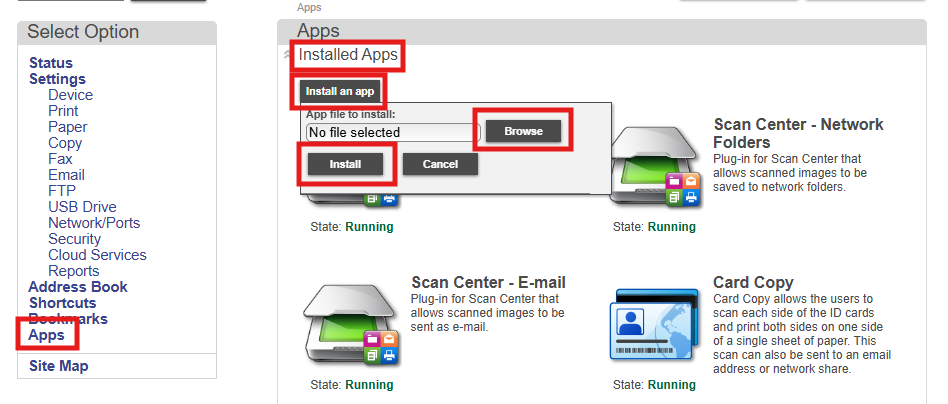
After completing the manual configuration settings on the device web interface Lexmark - Installation and Configuration, you can follow the steps below.
-
Open the OptimiDoc Partner Portal and log in.
-
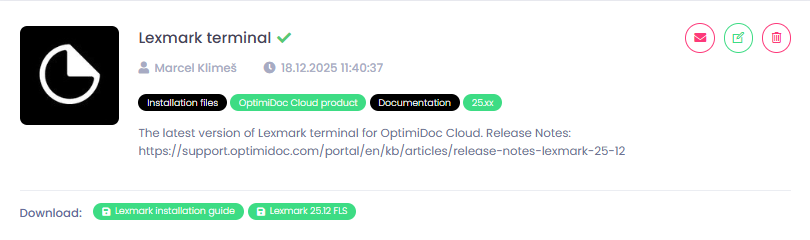
Go to section InfoHub > OptimiDoc Cloud and search for Lexmark terminal.
-
Download the Lexmark FLS file.
-
Unzip the file.
-
Open the device web interface.
-
Log in to the device as an administrator.
-
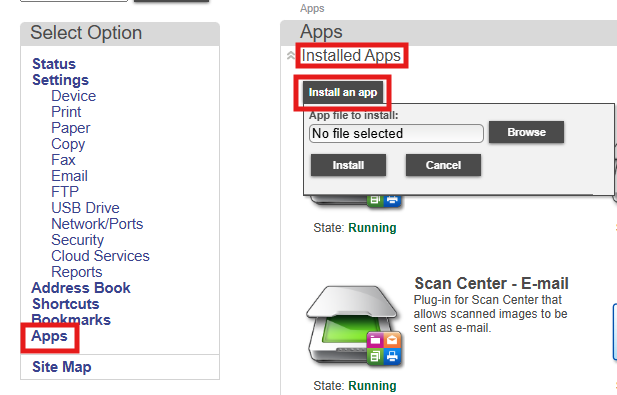
Navigate to Apps > Installed Apps > Install an app.
-
Browse “optimidoc2modern.fls” as a first file.
-
Click Install.
-
Browse “optimidoc.fls” as a second file, once the “optimidoc2modern.fls” is already installed on the device, otherwise the app won’t work correctly.
-
Click Install.
-
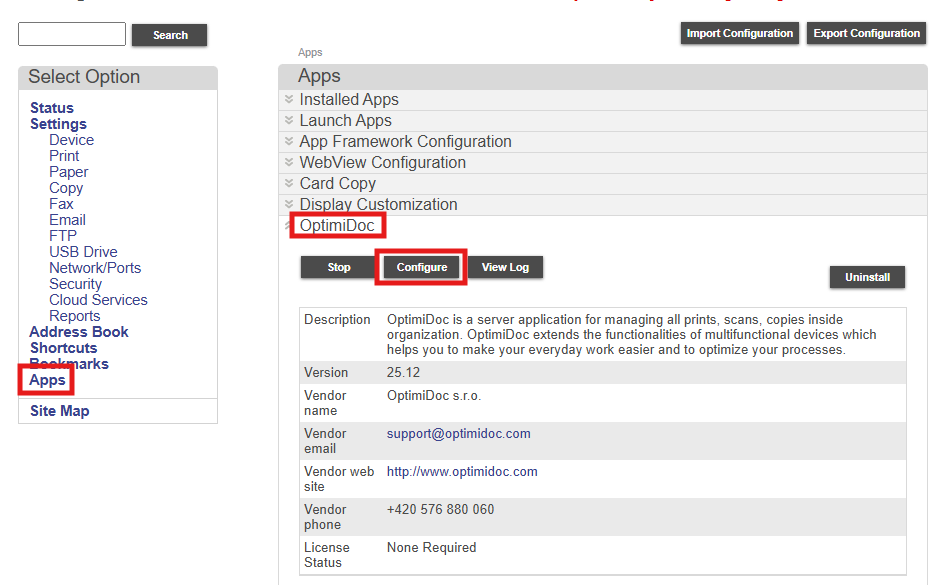
Once installed, navigate to Apps > OptimiDoc > and click Configure.
-
Application configuration:
a. OptimiDoc Cloud product - check the button.
b. URL of OptimiDoc - enter the URL of datacentre where is your company located.
c. Identification code - unique tenant’s code available at OptimiDoc Cloud Administration Portal. ID code can be found on the OptimiDoc Cloud portal. Once logged in, navigate to the Admin console > Dashboard > Identification code widget and click show value.
d. OptimiDoc as default application - check the button if you wish to open print&scan automatically after the user is authenticated.
e. Terminal layout - select Modern.
f. Authentication method - select PIN.
g. Display settings - Decide whether you want to have either Scan or Print as default screen of the application.
h. Click Apply.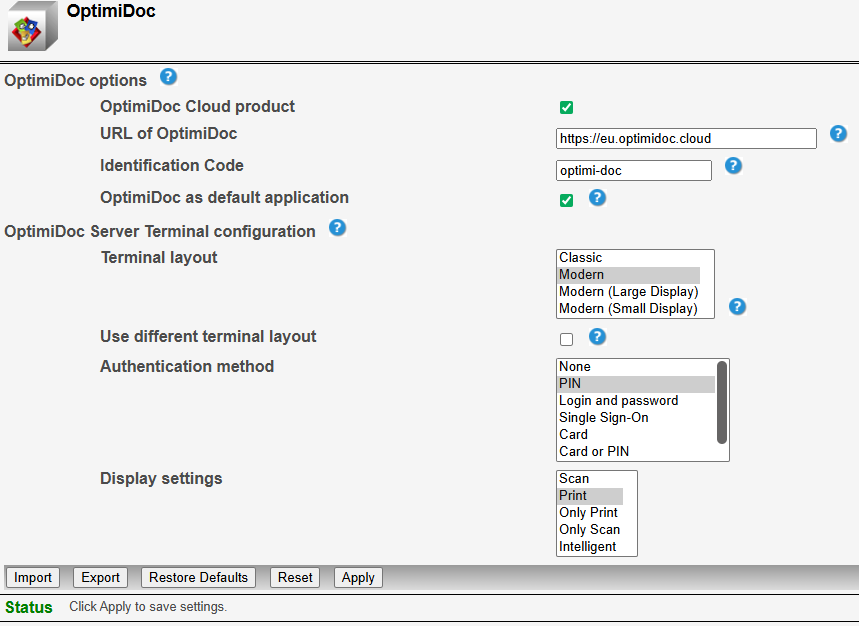
-
Enable the MFP: OptimiDoc Cloud application enablement.
-
Once you've enabled the device on the Cloud portal, proceed with the post-installation configuration: Lexmark - Post-install configuration.
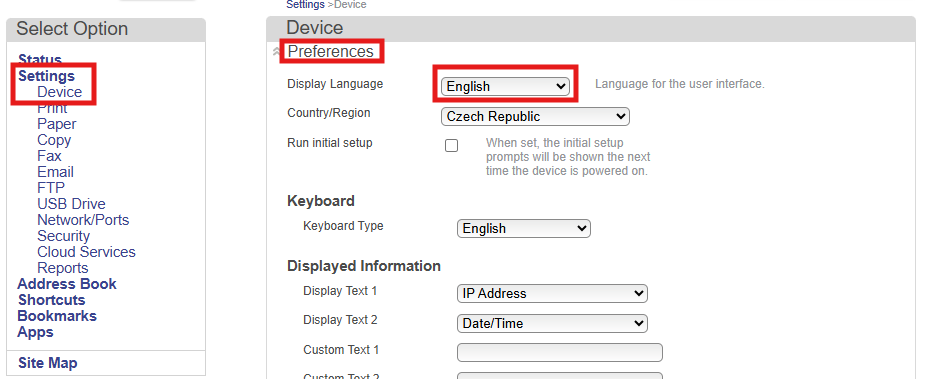
Language:
To change the language settings, log in to the printer's web interface as an administrator, go to Settings > Device > Preferences, and select appropriate language settings.
Card Authentication:
To log in using a card, you must download the Keyboard Reader Emulation Driver.
To install the reader, log in to the printer's web interface as an administrator, go to Apps > Installed Apps, click Install an app, upload the file, and click Install.