After successfully installing the app on the device, you’ll need to complete the post-installation configuration to take full advantage of all the app’s features.
-
Open the device web interface.
-
Log in to the device as an administrator.
-
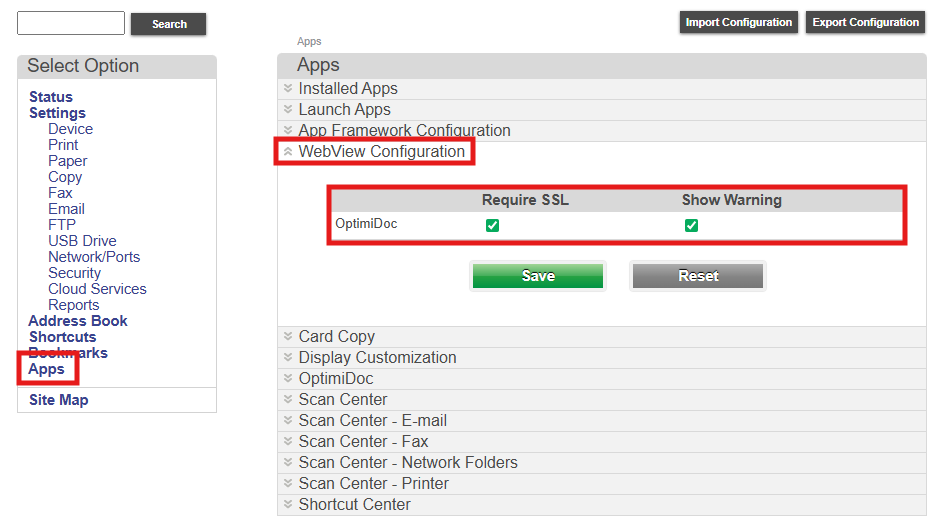
Navigate to Apps section.
-
Click on WebView Configuration which is installed by default.
-
If you will enable Require SSL and Show Warning options, you need to upload appropriate certificates to the device.
If you leave both options enabled and do not use proper server certificates, you will receive the following error: Lexmark - Cannot connect to destination error.
If you leave only Show Warning option enabled and do not use proper server certificates, you will receive the following error: Lexmark - Unsecure server connection error.
-
Click Save.
-
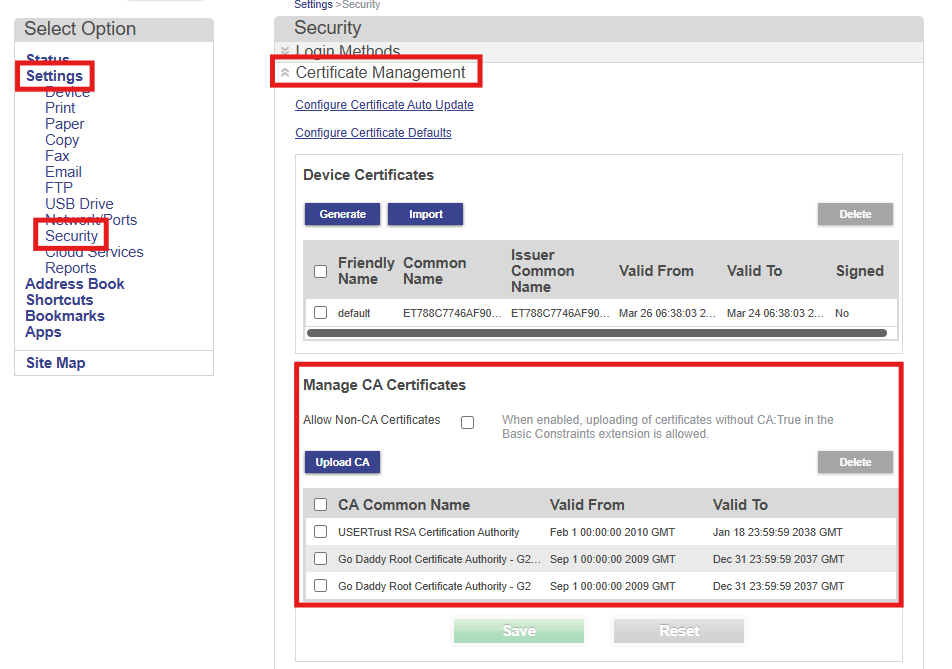
To upload the certificates to the device, navigate to Settings > Security > Certificate Management > Manage CA Certificates.
Device certificates are available for download on the Partner Portal.
-
Click Upload CA.
-
Browse PEM file.
-
Click Save.