
Set OptimiDoc as the Default Application
Follow these steps to configure OptimiDoc Print&Scan as the default application after login.
Part 1: Enable Required Services
-
Open the device web interface.
-
Log in to the device as an Administrator.
-
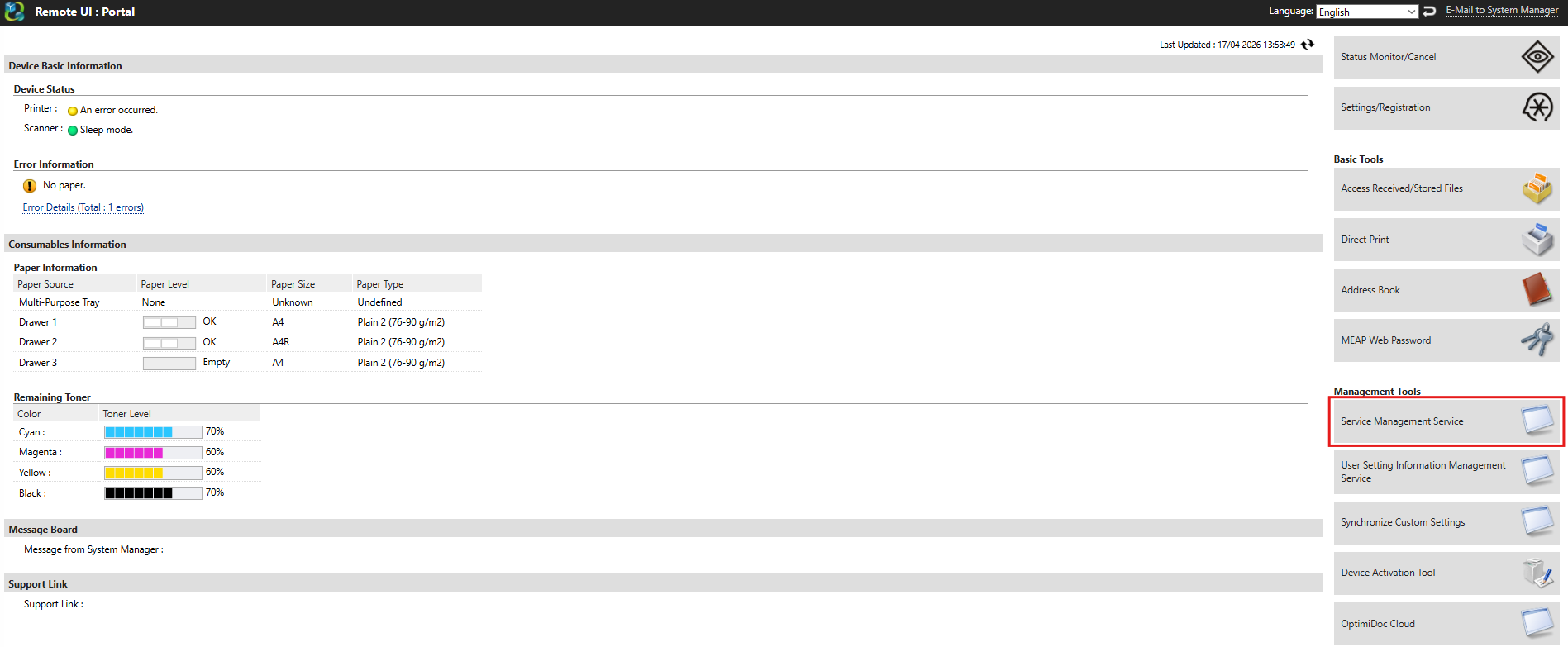
Open Service Management Service section.
-
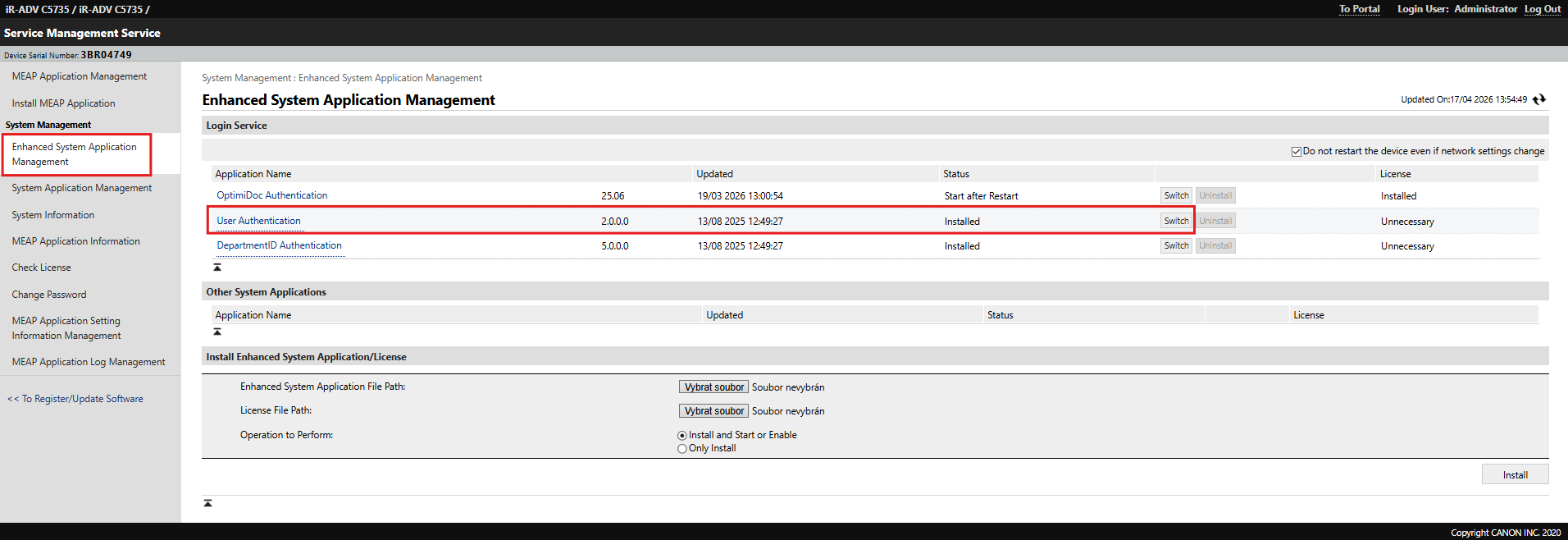
Navigate to Enhanced System Application Management > User Authentication and click on the Switch button.
-
Restart the device.
-
After restart, log in as administrator:
-
Username:
Administrator -
Password:
987654321
-
Part 2: Set OptimiDoc as Default Screen
-
Open the device terminal (MFP).
-
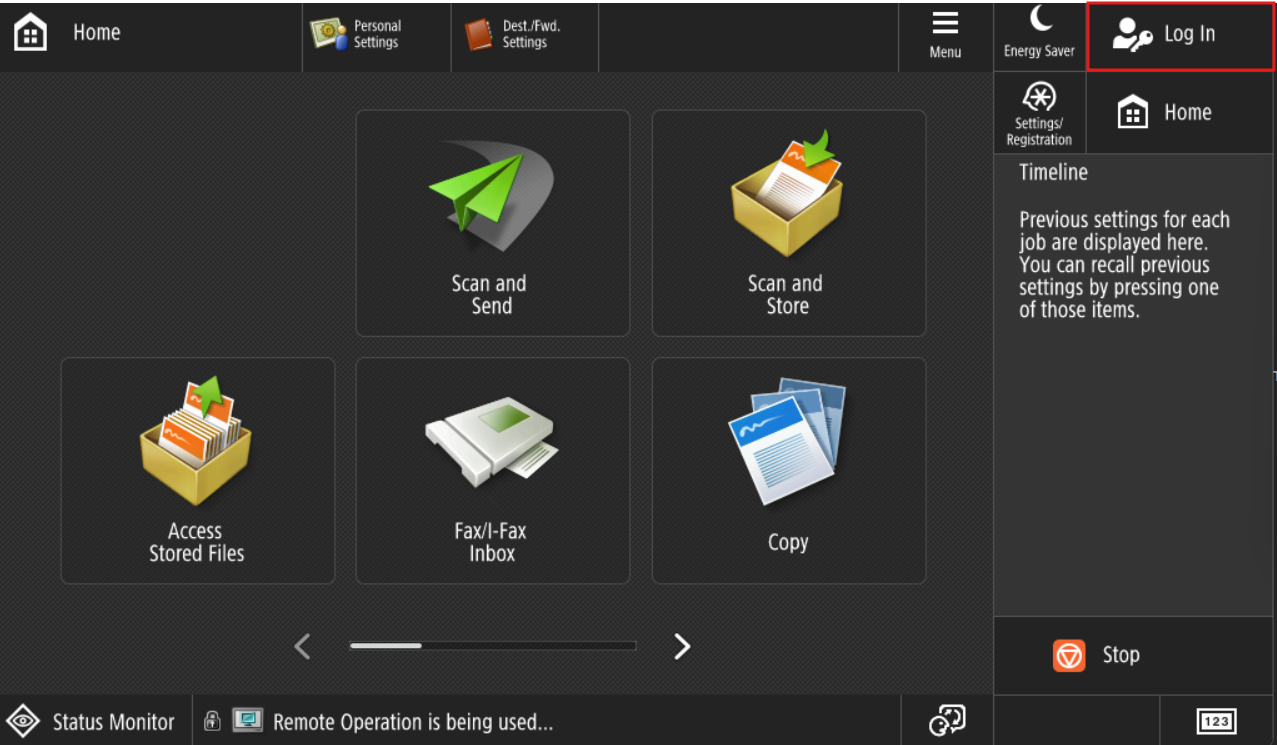
Log in as Administrator.
-
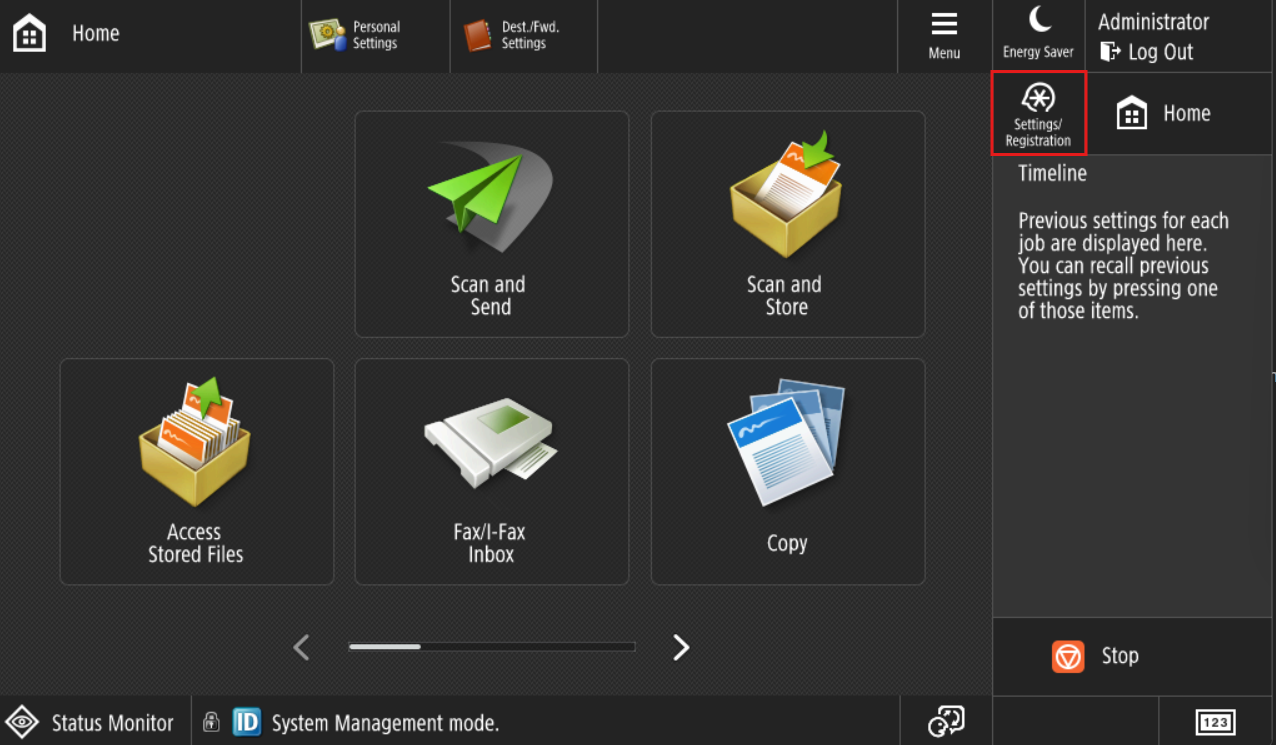
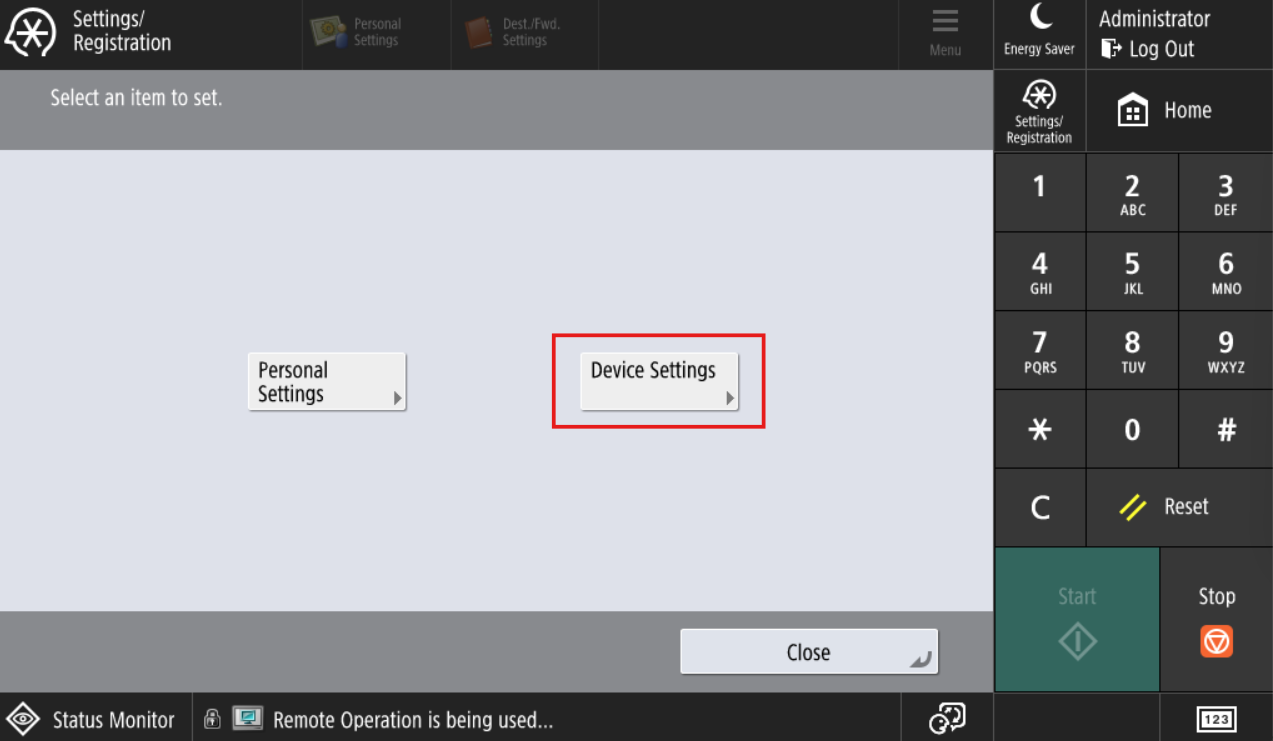
Go to Settings/Registration > Device settings.
-
Go to Device Settings section.
-
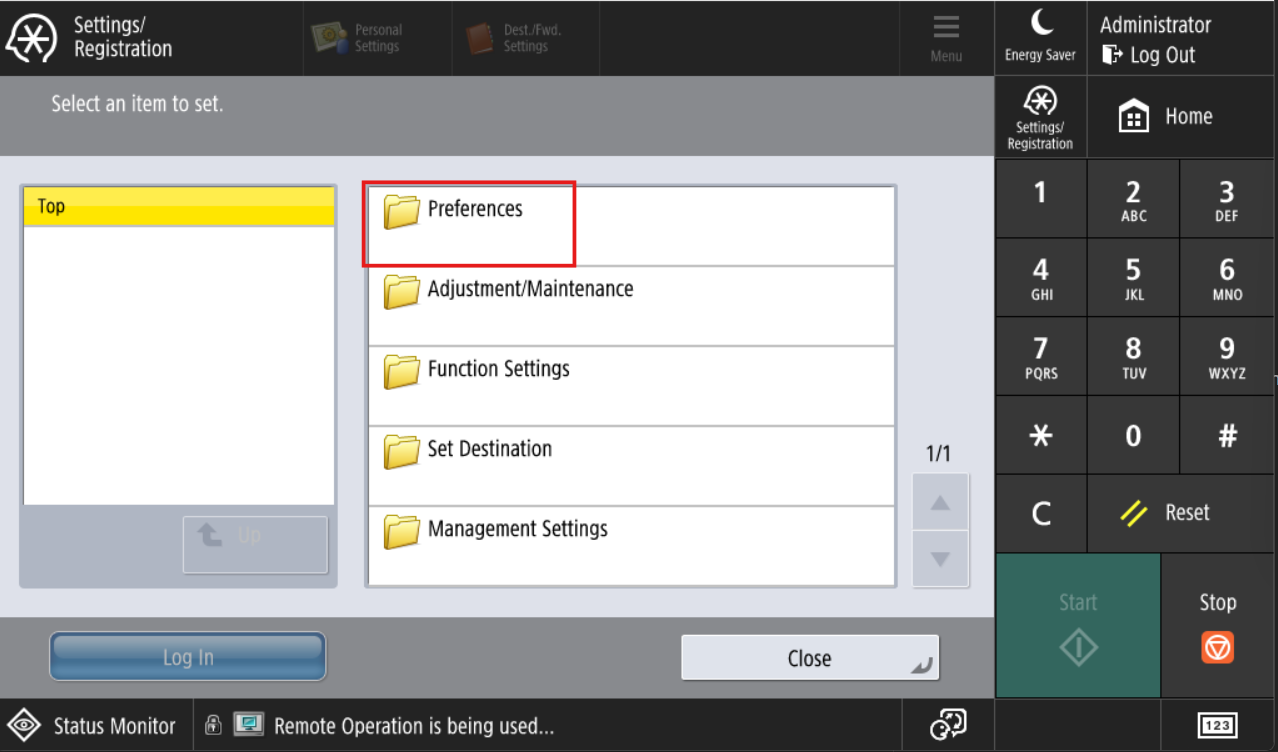
Navigate to Preferences section.
-
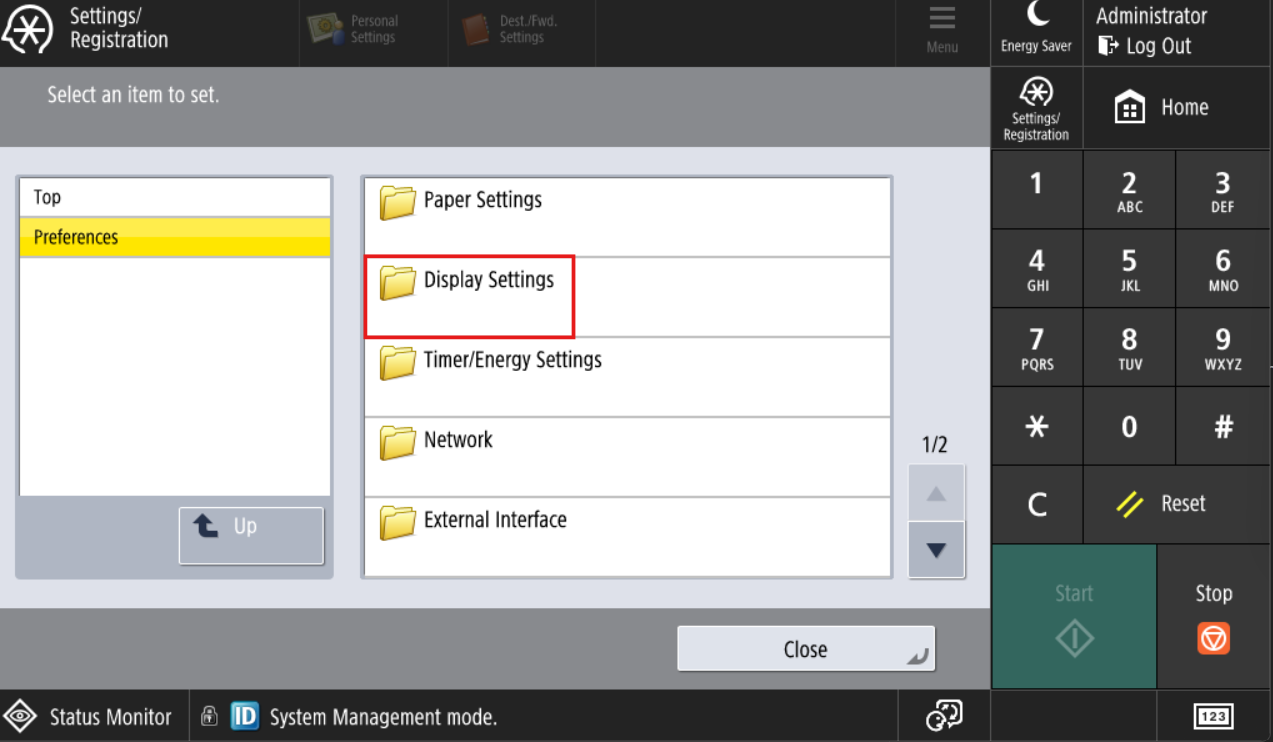
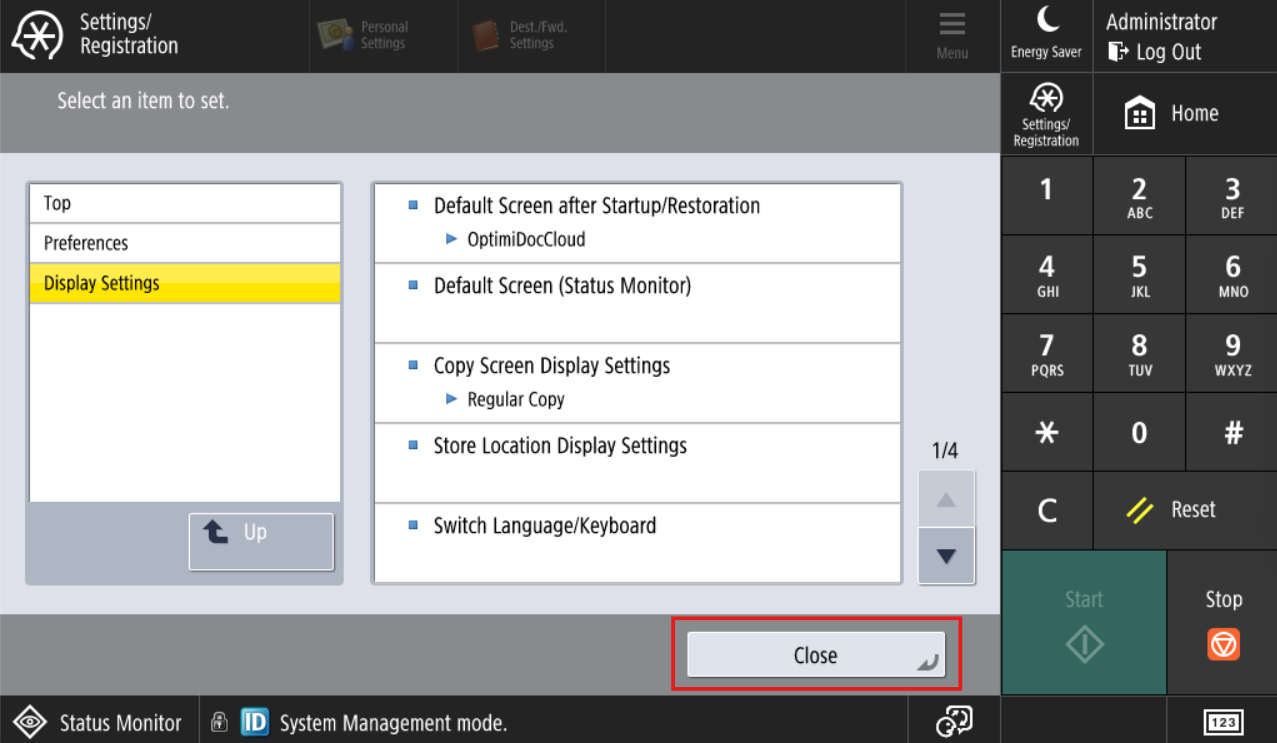
Go to Display Settings.
-
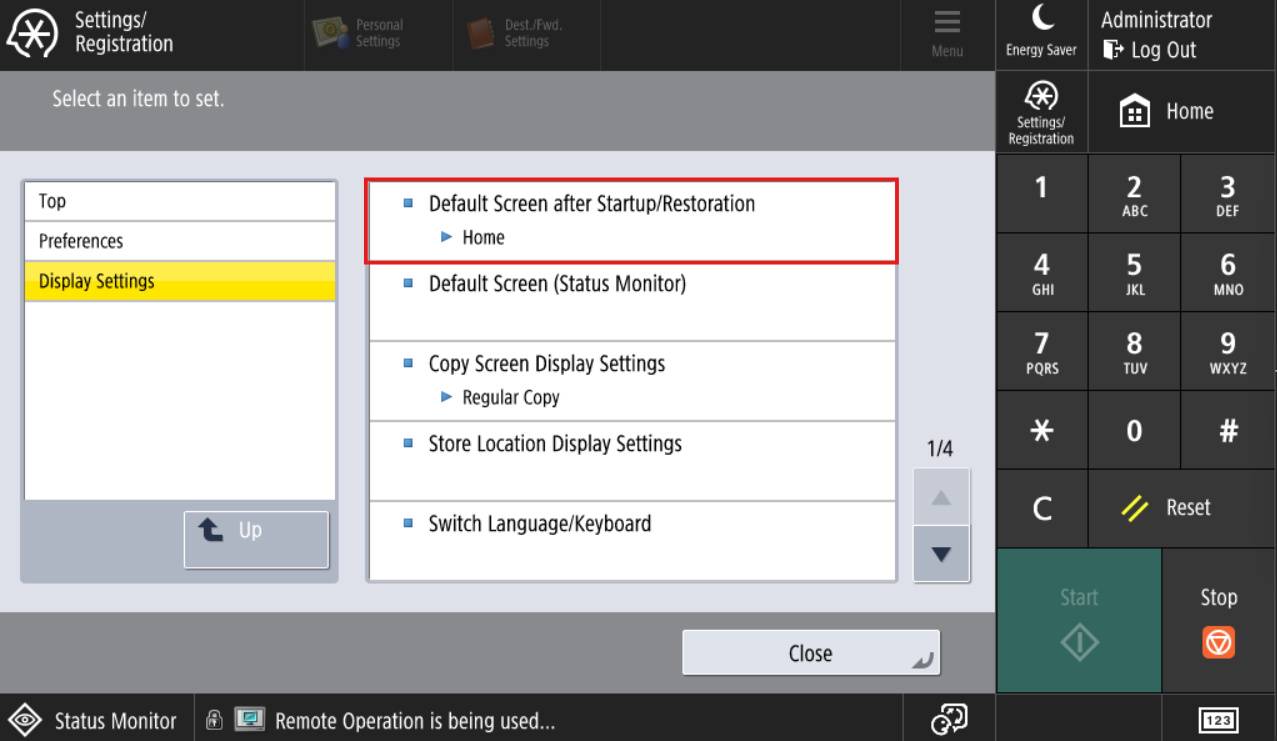
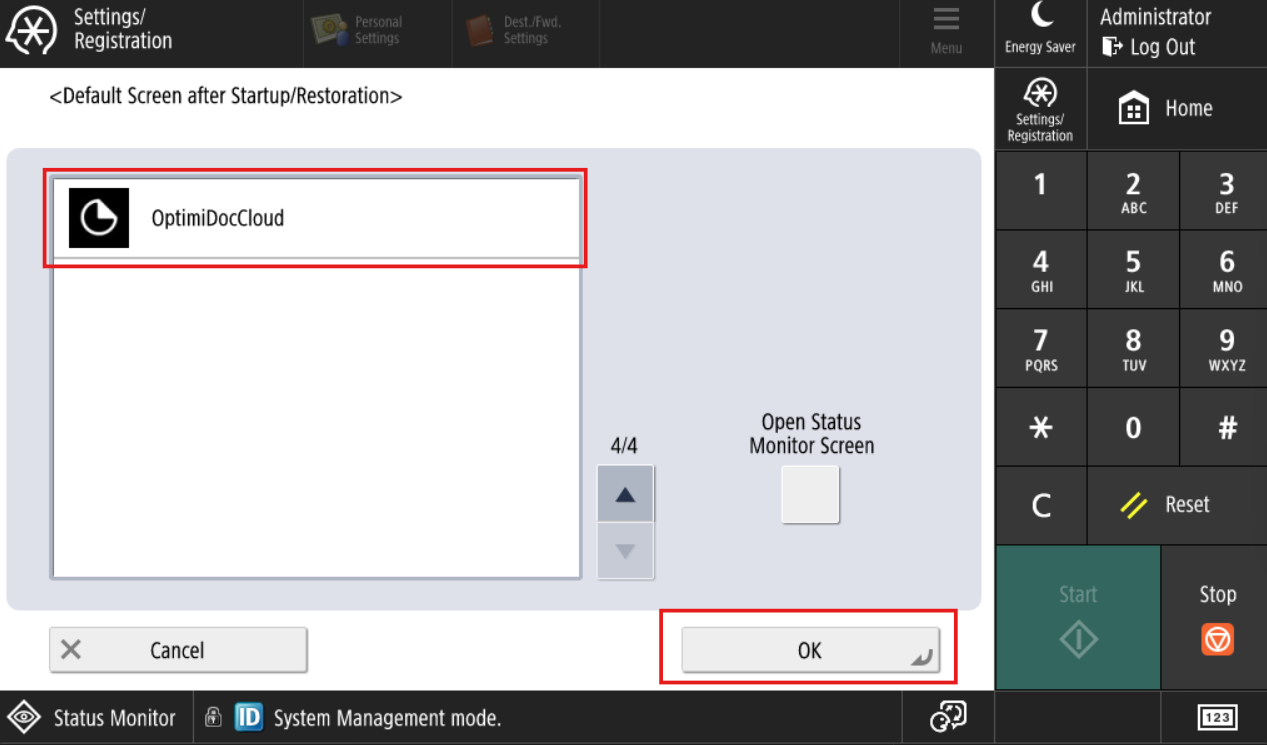
Select Default Screen after Startup/Restoration option.
-
Choose OptimiDocCloud.
-
Click OK.
-
Click Close.
-
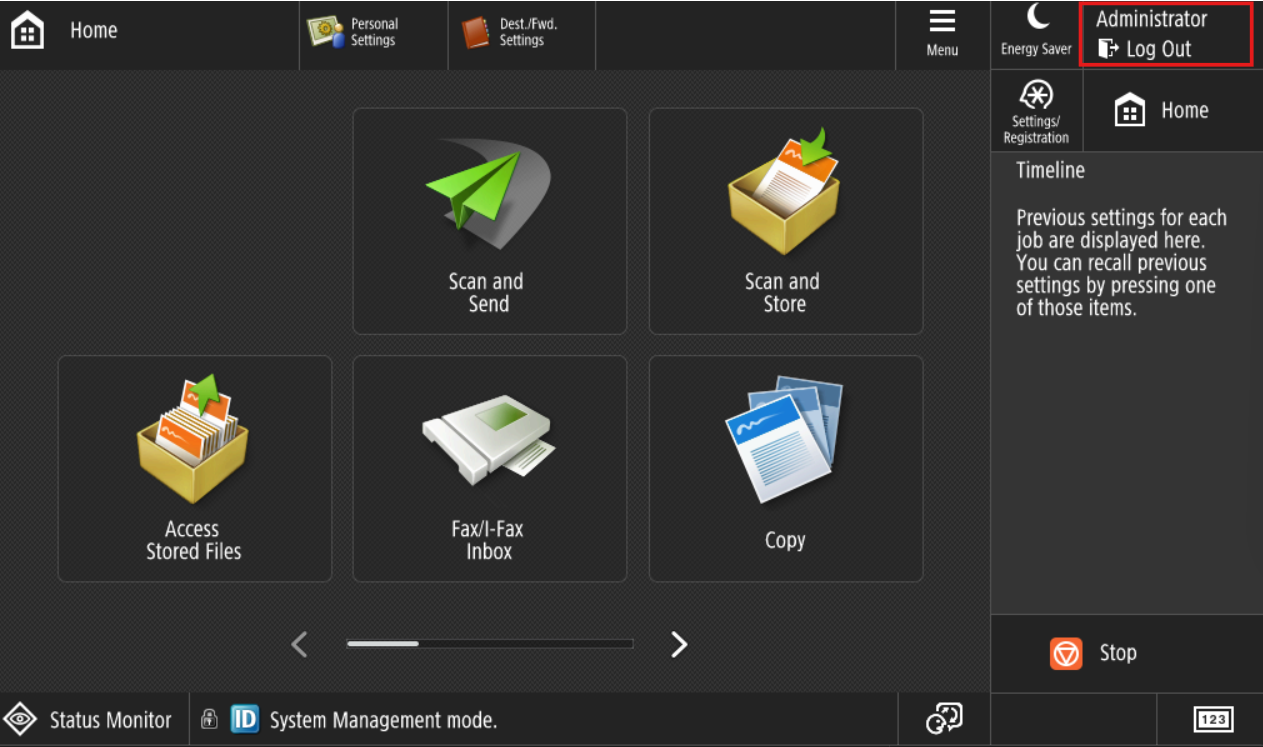
Log out Administrator.
Part 3: Enable OptimiDoc Authentication
-
Go back to the device web interface.
-
Log in to the device as an Administrator:
-
Username:
Administrator -
Password:
987654321
-
-
Go to Service Management Service section.
-
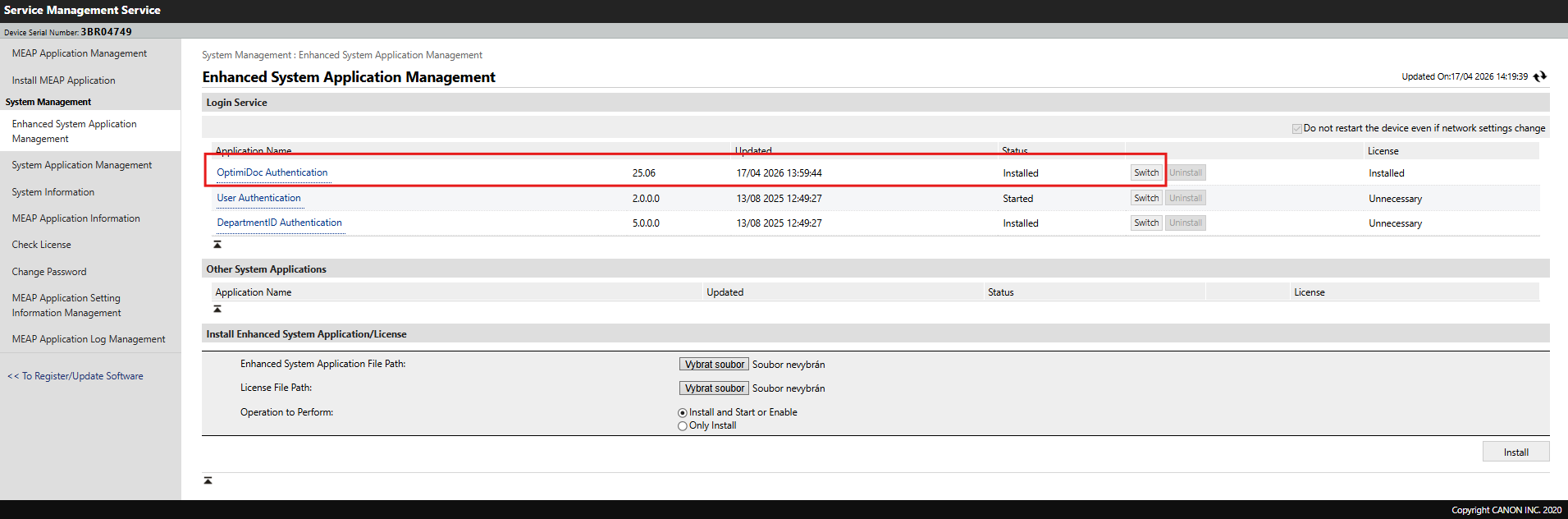
Navigate to Enhanced System Application Management > OptimiDoc Authentication and click on the Switch button.
-
Restart the device.
Please note that after switching to OptimiDoc Authentication app, default login credentials will change.
Default login: Administrator
Default password: 7654321
Final Result
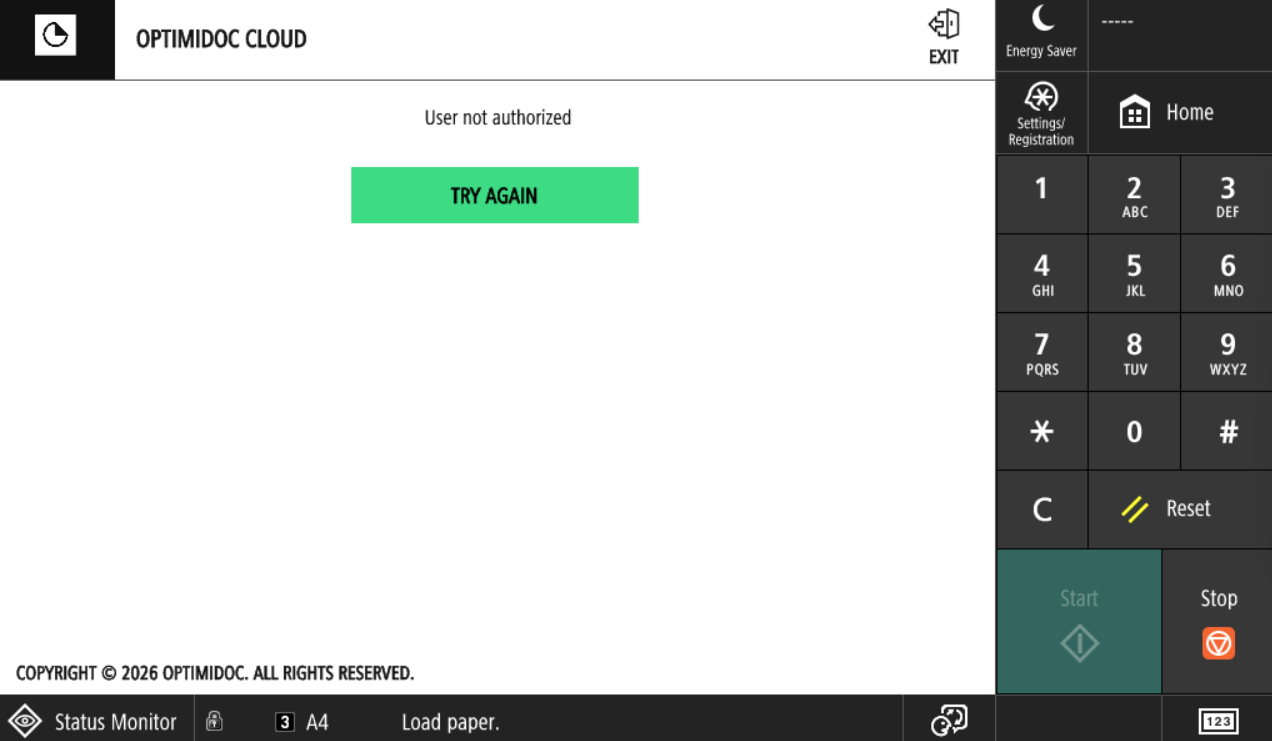
After completing these steps, OptimiDoc Cloud application will be opened automatically after the user log in to the MFP.
Enabling Direct Print
To allow users to print directly to the device:
-
Open the device web interface.
-
Log in to the device as an Administrator.
-
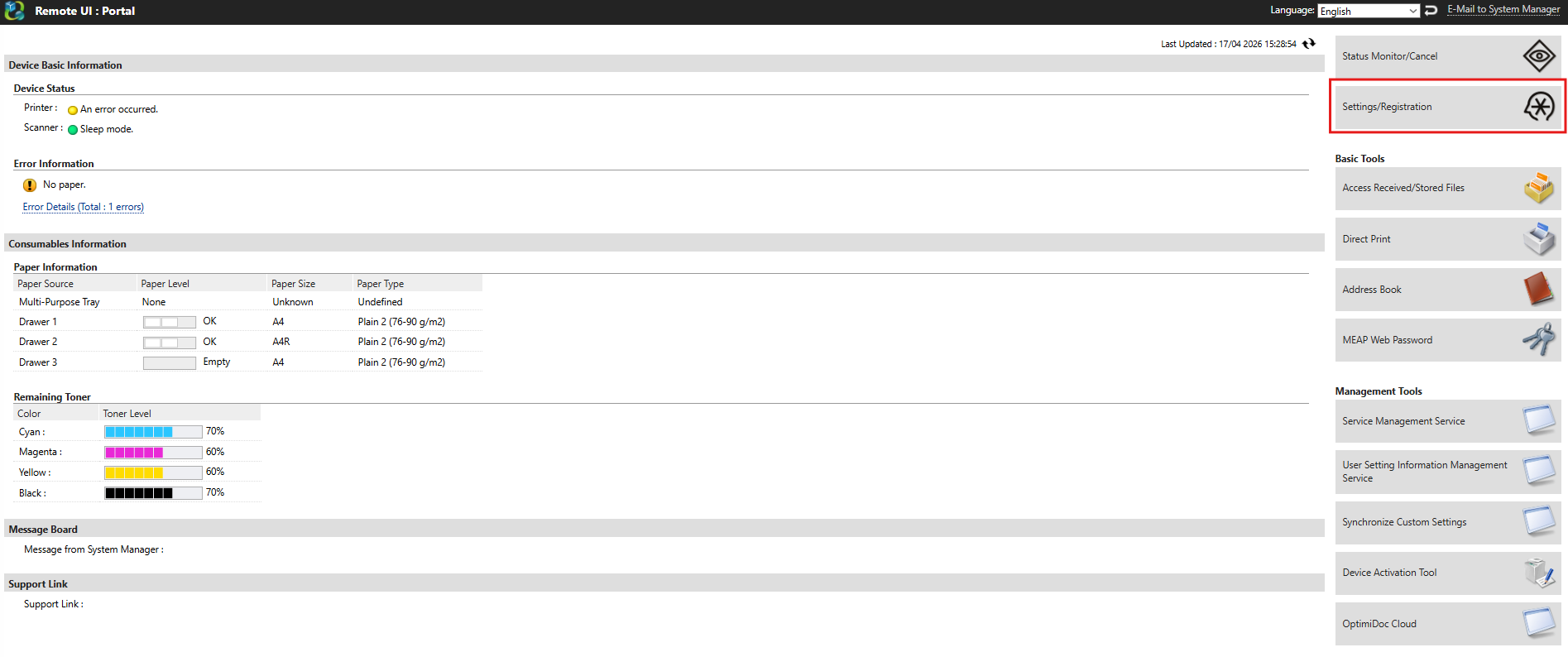
Go to Settings/Registration section.
-
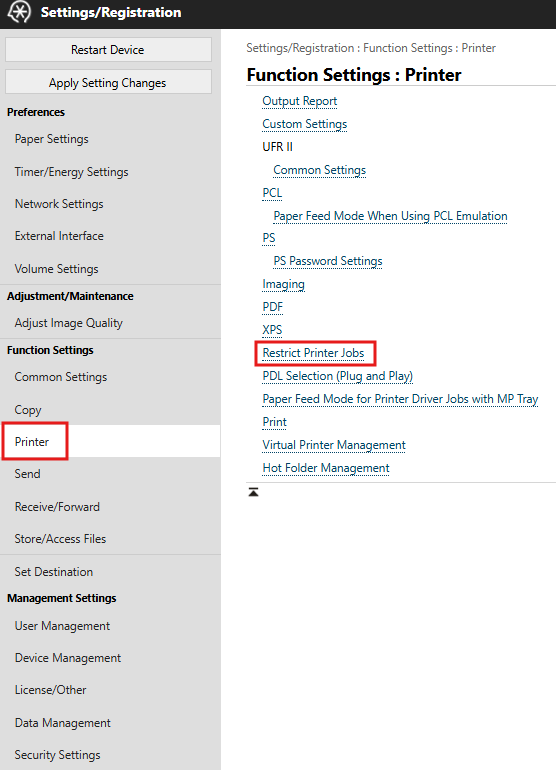
Navigate to Printer > Restrict Printer Jobs.
-
Uncheck the Restrict Printer Jobs option.
-
Click OK.
