
This section describes how to manually configure the Print&Scan application on Canon devices.
The Print&Scan application is configured directly from the Canon device interface by setting the Top Page URL. This URL defines how the device connects to your company in the Cloud portal.
Configuration Steps
-
Open the device web interface.
-
Log in to the device as an Administrator.
Please note that after installing the OptimiDoc app, default login credentials will change.
Default login: Administrator
Default password: 7654321
-
Navigate to OptimiDoc Cloud application.
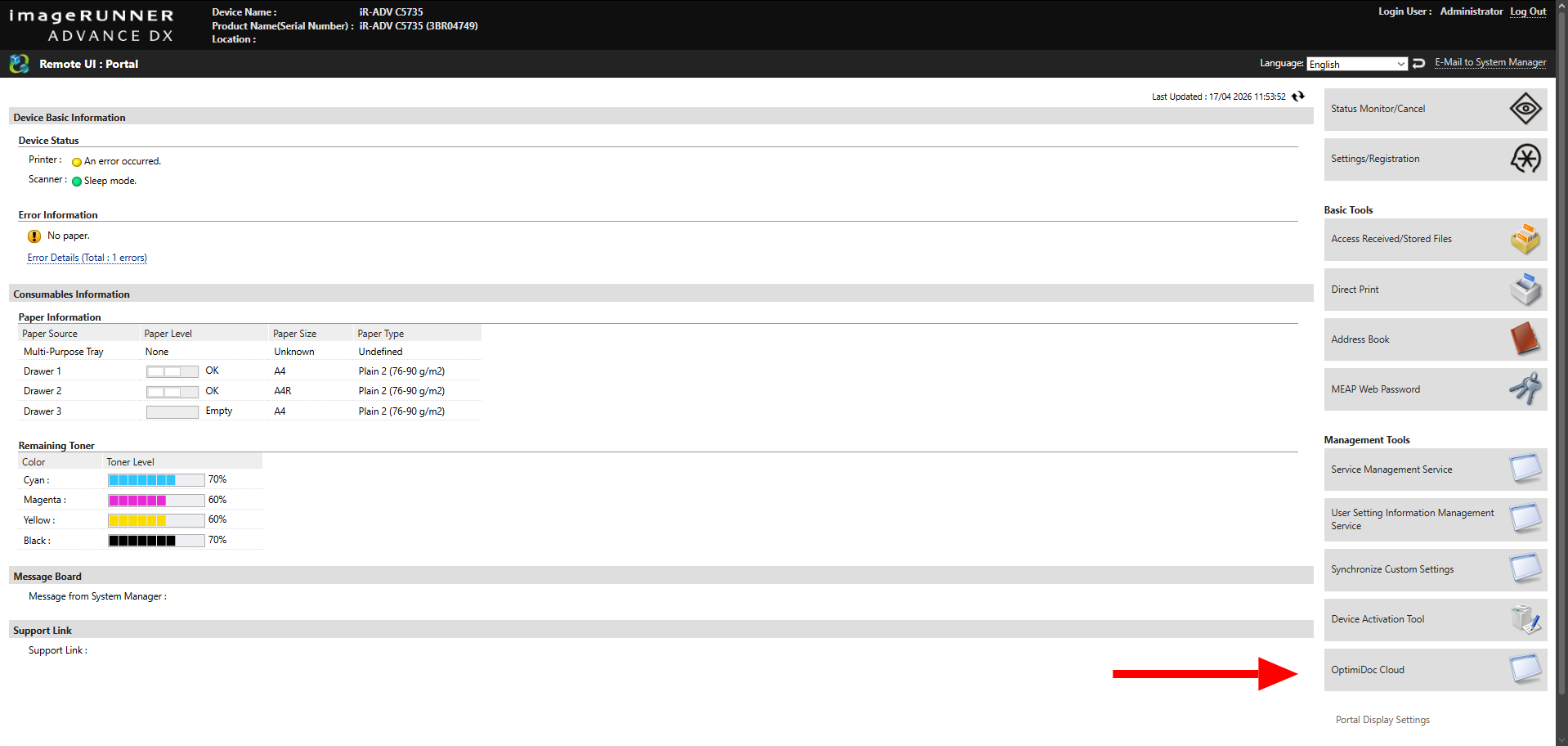
-
In the Application Settings edit the Top Page URL field.
URL Format
Use the following format:
https://DATACENTRE_URL/mfp/terminal/init/canon?code=COMPANY_ID
Parameters
-
DATACENTRE_URL- URL of the cloud datacenter. -
code- ID code of your company.
ID code can be found on the OptimiDoc Cloud portal. Once logged in, navigate to the Admin console > Dashboard > Identification code widget and click show value.
Example
https://eu.optimidoc.cloud/mfp/terminal/init/canon?code=A1B2C-3D4E5-F6G7H
Optional Parameter
You can also specify the application language using the lang parameter.
-
lang- language code (must match one of the supported cloud portal languages).
Supported values:
-
cs- Czech -
en- English -
de- German -
es- Spanish -
fr- French -
hr- Croatian -
hu- Hungarian -
pl- Polish -
pt-BR- Portuguese (Brazil) -
nl- Dutch
Example with language
https://eu.optimidoc.cloud/mfp/terminal/init/canon?code=A1B2C-3D4E5-F6G7H&lang=en
-
Save the configuration by clicking the Settings button.

-
Enable the MFP: OptimiDoc Cloud application enablement.